Category: Docker

  • NGINX Reverse Proxy Setup

    NGINX Reverse Proxy Setup

    This guide covers securing a WordPress (or any application) site with a reverse proxy, enabling custom filters and supporting multiple sites based on routes.

    The technical stack behind this:

    Prerequisites

    You already have the following:

    Install & Configure Docker

    Use the following guide to install Docker on Ubuntu (22 or 24 as of this writing).

    https://docs.docker.com/engine/install/ubuntu/

    Create CloudFlare Linux Location

    In your home directory, create a

    cloudflare
    folder that will contain all your certificates.

    Install CloudFlare Authenticated Origin Pull Certificate

    Download and add the certificate in your CloudFlare folder on the server:

    https://developers.cloudflare.com/ssl/origin-configuration/authenticated-origin-pull/set-up/zone-level/#1-upload-certificate-to-origin

    Deploy Docker NGINX

    We’ll be using Docker to manage our NGINX configurations.

    Clone GitHub Repo

    Clone the following GitHub repository:

    https://github.com/duaneleem/template.nginx-proxy

    Create Website Configuration

    Create a new website configuration under the following project folder:

    artifacts/configurations/website-url.route.conf

    There will be example configurations already in that folder as well that could be used as a model.

    Add Configuration to docker-compose.yaml

    See the

    docker-compose.yaml
    on line 20.

    When you create new

    .conf
    files, add another line that references that configuration

    Run Docker Deployment Command

    Run the following command to deploy the new server:


    docker compose up -d

    Contact Duane

    For expert help securing your web applications with advanced cybersecurity techniques, feel free to contact me below.
  • Install & Uninstall Minikube (Ubuntu 22.04.2 LTS)

    Install & Uninstall Minikube (Ubuntu 22.04.2 LTS)

    In this guide, we will explore the process of installing and uninstalling Minikube on Ubuntu 22.04.2 LTS.

    Install Minikube

    Minikube Installation

    I’ve used the official Minikube start documentation. This was the output:


    # Installation for Ubuntu 22.04.2 LTS, x86-64
    curl -LO https://storage.googleapis.com/minikube/releases/latest/minikube_latest_amd64.deb
    sudo dpkg -i minikube_latest_amd64.deb

    # Start your cluster
    minikube start

    You’ll receive an error because you’ll need to specify a driver. The recommended driver is Docker. The next section will go over installing Docker.

    Install Docker

    Let’s use Docker as our driver for Minikube. I used the official Docker documentation to get Docker installed.

    After installing Docker, do these post-setup configuration.

    Deploy Kubernetes

    Finally, run the following based on the Minikube documentation:


    # Set Docker as default.
    minikube config set driver docker

    # Start Minikube with Docker as the driver.
    minikube start

    # Alias kubectl
    alias kubectl="minikube kubectl --"
    alias k="minikube kubectl --"

    Uninstall Minikube

    Use the following documentation to delete Minikube.


    minikube delete --all --purge

    Resources

    The following resources were used to develop this guide.

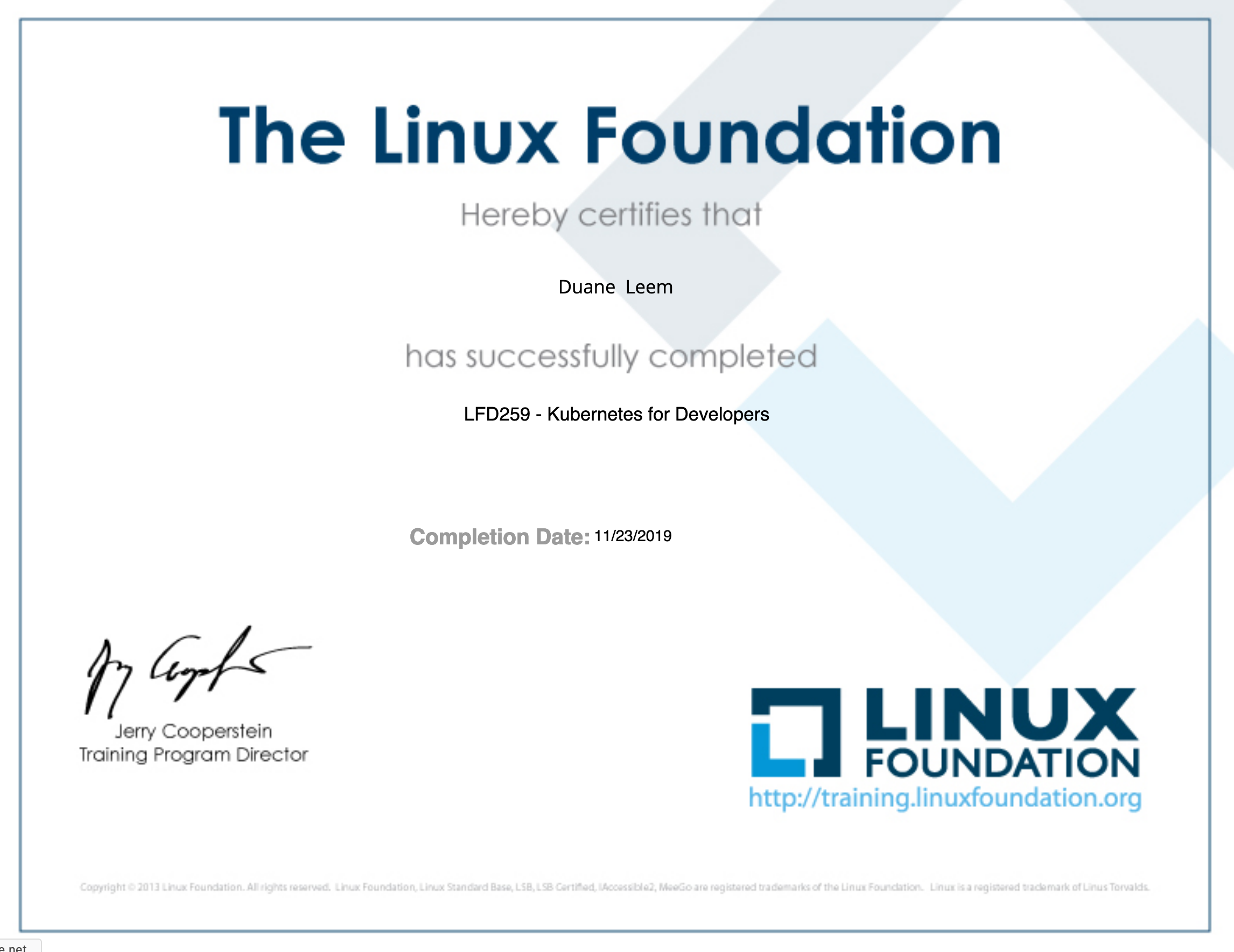
  • Finished The Linux Foundation’s Kubernetes Training Program

    Finished The Linux Foundation’s Kubernetes Training Program

    After several months of training from The Linux Foundation, I finished their program 🙂

    This training program has helped me learn more about Kubernetes and its components. I have several pods running in our production environment and by going through this program, it has given me more tools to help support my company that uses Kubernetes to help scale our web infrastructure.

    I took the training from The Linux Foundation located here.

  • Finished edX Kubernetes Course

    Finished edX Kubernetes Course

    Kubernetes has helped me at my job so much that I want to fully deep dive into the technology! I just finished The Linux Foundations course on Kubernetes 🙂

    edX - Introduction to Kubernetes
    LFS158x: Introduction to Kubernetes

  • Local WordPress Development

    Local WordPress Development

    About

    The purpose of this guide is to help you create a local WordPress development server on your laptop using Docker.

    Requirements

    • You have Docker installed.
    • You already know how to use Docker.
    • Create a project folder that will contain all these files. This can be anywhere on your computer. Example: ~/Code/WordPress-Test

    Create MySQL Docker Container

    Create a new MySQL instance (if you don’t already have one) so your WordPress can use it as its database. Save the following to the root of your project folder.

    Run the following:


    docker-compose up -d

    Before running a WordPress container, create a schema. For this example, I’ll use the schema name “wordpress-dev”.

    Create WordPress Docker Container

    Use the following Gist to create your Docker container.

  • Immutable WordPress Example

    Immutable WordPress Example

    One of my goals to improve security and availability is to containerize my applications and use a Microservices architecture.  I’ve separated MySQL and WordPress and placed them in their own containers.

    By creating immutable instances of an application that is highly mutable, I’m able to destroy/recreate on the fly should something happen to my WordPress applications.

    I’ll explain how these two containers are created.

    MySQL docker-compose.yaml

    I’ve made a universal docker-compose.yaml that takes advantage of an external MySQL DB container: To visit, click the following button.

    I’ve noted the following areas in the configuration and why I chose to implement them this way:

    ConfigDescription
    imagemysql:5.6

    This is the MySQL version I’m using. WordPress supports MySQL and MariaDB (latest versions)
    network_modenetwork_mode: bridge

    If you’re running standalone containers that need to communicate with each other, use bridge mode.
    volumesvolumes: – db_data:/var/lib/mysql

    I’ve created a persistent volume. When bringing down the container and restoring it, the contents of MySQL is kept.
    portsI’ve opened these two ports to communicate with it directly with a client.  Turn this off to close the ports entirely from the outside world.
    exposeExposing 3306 within Docker will help other containers communicate with it.  In fact, you need this exposed.
    restartrestart: always

    As the name suggests, always restart the container should something happen to it (system restart, container restart, container crashes, etc).
    container_namecontainer_name: db-mysql-main

    I’ve explicitly gave my container a name.  Not the best practice if you’re looking at scaling.  Feel free to omit this unless you want to use a single container throughout its lifecycle.
    environmentThe official MySQL container has several environmental variables you can take advantage to interact directly with the management of the service.  See the official MySQL Docker for more information.

    WordPress docker-compose.yaml

    Creating a MySQL container is pretty straight explanatory.  The hardest part of these two configurations is putting together a docker-compose.yaml file for a WordPress container.  To view the example configuration, click the following link:

    ConfigDescription
    imageimage: wordpress:4.9.8-php5.6-apache

    Official WordPress image.  You should probably use a PHP7 version.
    network_modenetwork_mode: bridge

    If you’re running standalone containers that need to communicate with each other, use bridge mode.
    volumesThe following volumes need to be mapped to the contents remain consistent:
    – /wp-content/themes
    – /wp-content/plugins
    -/wp-content/uploads
    -/.htaccess

    Add a custom .htaccess. A very good feature for this is to map assets to the live version of your website if this is a sandbox version.  See this section on how that .htaccess would look like.
    portsports:
    – “8080:80”

    I used port 8080 to serve my HTTP page.  Feel free to change that to whatever you want.  The internal port is your standard port 80.
    restartrestart: always

    As the name suggests, always restart the container should something happen to it (system restart, container restart, container crashes, etc).
    container_namecontainer_name: wp-test

    I’ve explicitly gave my container a name.  Not the best practice if you’re looking at scaling.  Feel free to omit this unless you want to use a single container throughout its lifecycle.
    environmentEnvironmental variables go here.  I’ve used the standard variables that you’ll need to get WordPress running.  Visit this page to know other variables you may need to use if needed.

    Most notably, you can add additional configurations outside your standard configurations using WORDPRESS_CONFIG_EXTRA

    Launching Containers

    Launch the following configurations in this exact order:

    • MySQL docker-config.yaml
    • WordPress docker-config.yaml

    I have these configurations in their own folder.  In each folder, execute the containers by executing the following:


    docker-compose up -d
  • Installing and Configuring Kubernetes with Docker on MacOS

    Installing and Configuring Kubernetes with Docker on MacOS

    Install Kubernetes for MacOS

    Installing Kubernetes (K8S) with Docker installed on my machine caused an error:

    The connection to the server was refused – did you specify the right host or port?

    I tried the following:

    • Installed manually via: curl -LO https://storage.googleapis.com/kubernetes-release/release/$(curl -s https://storage.googleapis.com/kubernetes-release/release/stable.txt)/bin/darwin/amd64/kubectl 
    • Installed via Homebrew: brew install kubernetes-cli

    I found that installation of K8S can be done through Docker.  Do the following to automate the installation of K8S on your machine (mine is MacOS):

    • On MacOS menu bar, click on Docker.
    • Click: Preferences
    • Click: Kubernetes
    • Checkbox: Enable Kubernetes
    • Select Kubernetes
    • Click: Apply

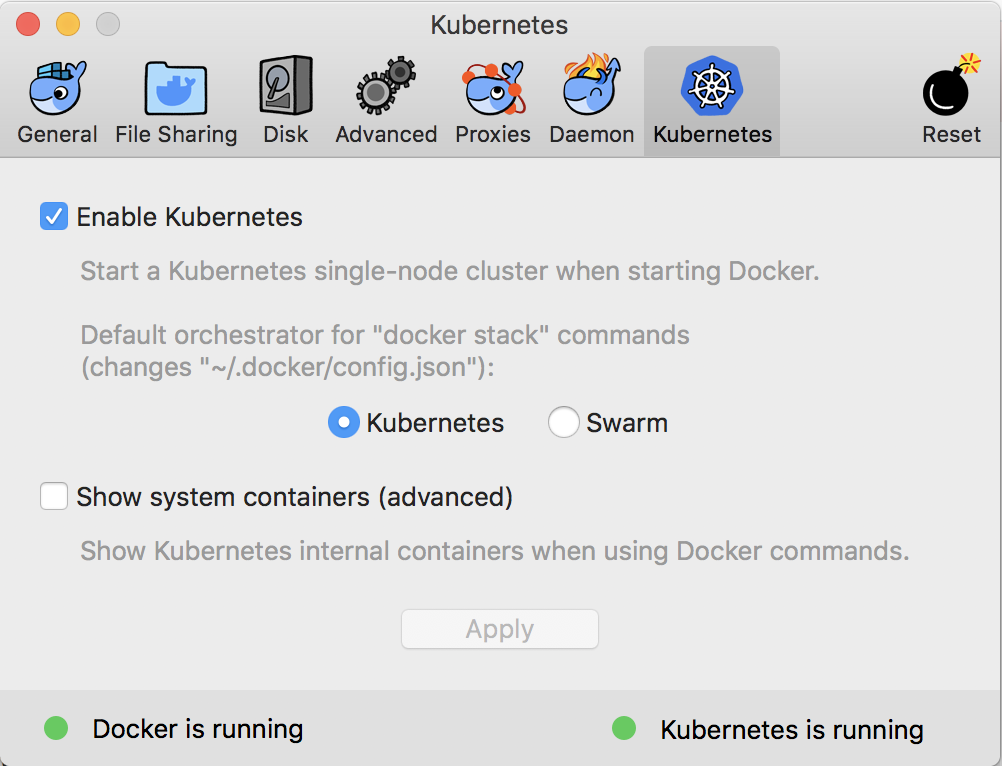
    The UI should look the following:

    Kubernetes Section of Docker UI Configuration

    Install Minikube

    Do the following to use Homebrew to install Minikube:

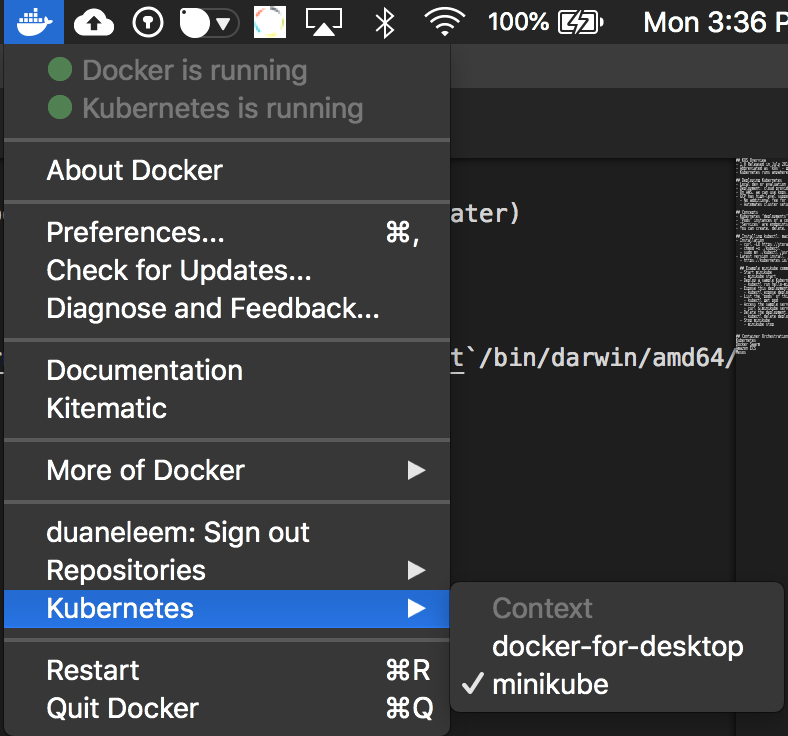
    Switch between Docker for Desktop or minikube by clicking on the Docker icon on the menu bar, hover to Kubernetes, and choose the driver.

    Uninstall Minikube

    The latest Docker for MacOS (Docker v18) comes with Kubernetes built-in and we don’t need to use Minikube for local development.  We can use docker-for-desktop! 🙂

    • brew cask uninstall minikube
    • kubectl config delete-context minikube

    Switching Context

    We can switch between Docker for Desktop (DFD) and Minikube with two ways. One way is through kubectl

    • Get a listing: kubectl config get-contexts
    • Switch to DFD: kubectl config use-context docker-for-desktop
    • Minikube: kubectl config use-context minikube

    The alternative is using Docker for Desktop menu:

    kubectl Commands

    Some of the commands I use commonly on Kubernetes.

    Apply yaml Configkubectl apply -f ./deployment.yaml
    Export Portkubectl expose deployment tomcat-deployment –type=NodePort
    Service Detailskubectl describe service/tomcat-deployment
  • Updating Running Docker Container

    Updating Running Docker Container

    The following commands update containers that are already running using Docker Update

    Always restart docker update –restart=always CONTAINER_NAME
    Unless stopped docker update –restart=unless-stopped CONTAINER_NAME
  • Link to Existing MySQL container from Docker Compose

    Link to Existing MySQL container from Docker Compose

    About

    I’ve been creating multiple docker-compose.yml file.  I’m starting to have a long list of containers for each WordPress project that I create.  Each time I create a new docker-compose.yml for each WordPress project, 2 containers are created (WordPress and a MySQL container).

    What I want to achieve is this:

    • A separate container for each WordPress environment.
    • Have a single MySQL container that will be the centralization for all WordPress environments.

    I’ve originally created a post about creating a docker-compose.yml for a WordPress dev environment.  But that creates a WordPress + MySQL paired network and container setup.

    Solution

    Here’s an example of the solution I’ve created.  Essentially, I’ve added an “external_links” section that references my dev DB called “db-mysql”

    In my “docker-compose.yml”, under the WordPress service, I’ve added:


    network_mode: bridge

    This will stop docker-compose from creating a new network. To learn more about it, click here to visit the official documentation from Docker.

    References