Category: DevOps

  • Amazon Linux 2, Apache 2.4, PHP 7.3

    Amazon Linux 2, Apache 2.4, PHP 7.3

    In this guide, I will explain the steps necessary to create an Amazon Linux 2 server with:

    • Apache 2.4
    • PHP 7.3
    • Common PHP modules.
    • No RDBMS (MySQL / MariaDB) – We won’t need that as you’re using RDS 🙂

    Revision History

    • 2019-11-25: mcrypt Installation Instructions
    • 2019-11-24: Initial creation.

    Step 1: Follow AWS Guide on LAMP

    AWS created an awesome documentation on spinning up Amazon Linux 2 with LAMP. Follow steps 1 & 2 and forget about the other steps if you’re using RDS as your database provider (or another DB server).

    Step 2: Disable PHP 7.2 amazon-linux-extras

    If you went through Step 1, you now have LAMP 7.2 installed. You’re probably thinking, “wait a minute, I want PHP 7.3!”

    This is where it is tricky, but I’m here to make it easy for you 😉 First, you need to disable the amazon-linux-extras PHP7.2 you just installed:


    sudo amazon-linux-extras disable php7.2
    sudo amazon-linux-extras disable lamp-mariadb10.2-php7.2

    Next, you will need to enable the PHP 7.3 packages:


    sudo amazon-linux-extras enable php7.3

    # Additional PHP addons you'll most likely need.
    sudo yum install php-cli php-pdo php-fpm php-json php-mysqlnd

    # Disable php7.3
    # See "Updating Your Server"
    sudo amazon-linux-extras disable php7.3

    That’s it! Whenever you need to do an update on your server (using yum update), see the next section about that.

    Updating Your Server

    For server maintenance, run the following:


    # Update LAMP
    sudo amazon-linux-extras enable lamp-mariadb10.2-php7.2
    sudo yum update -y
    sudo amazon-linux-extras disable lamp-mariadb10.2-php7.2

    # Update php7.3
    sudo amazon-linux-extras enable php7.3
    sudo yum update -y
    sudo amazon-linux-extras disable php7.3

    Optional PHP Modules

    mcrypt

    Some of your legacy applications may rely on mcrypt. I’ve detailed the following on installing mcrypt and updating it to mcrypt 1.0.2.

    This module is also deprecated per official PHP documentation. While this may work for the time being, your ultimate goal is to develop using something else.

    To bake mcrypt into your server:


    sudo yum install libmcrypt-dev

    Future Updates: What if PHP 7.4 comes out and I need to update to that?

    While PHP 7.4 isn’t out yet, I do get your concern. It’ll be the same process as we upgraded from PHP 7.2 to PHP 7.3.

    First, we need to disable PHP 7.3:


    sudo amazon-linux-extras disable php7.3

    Next, we need to enable the future PHP 7.4:


    sudo amazon-linux-extras enable lamp-mariadb10.2-php7.2
    sudo yum update -y
    sudo amazon-linux-extras disable lamp-mariadb10.2-php7.2
    sudo amazon-linux-extras enable php7.4
    sudo yum update -y
    udo amazon-linux-extras disable php7.4

    Resources

    The following resources has helped me with this setup. I am grateful for their shared knowledge.
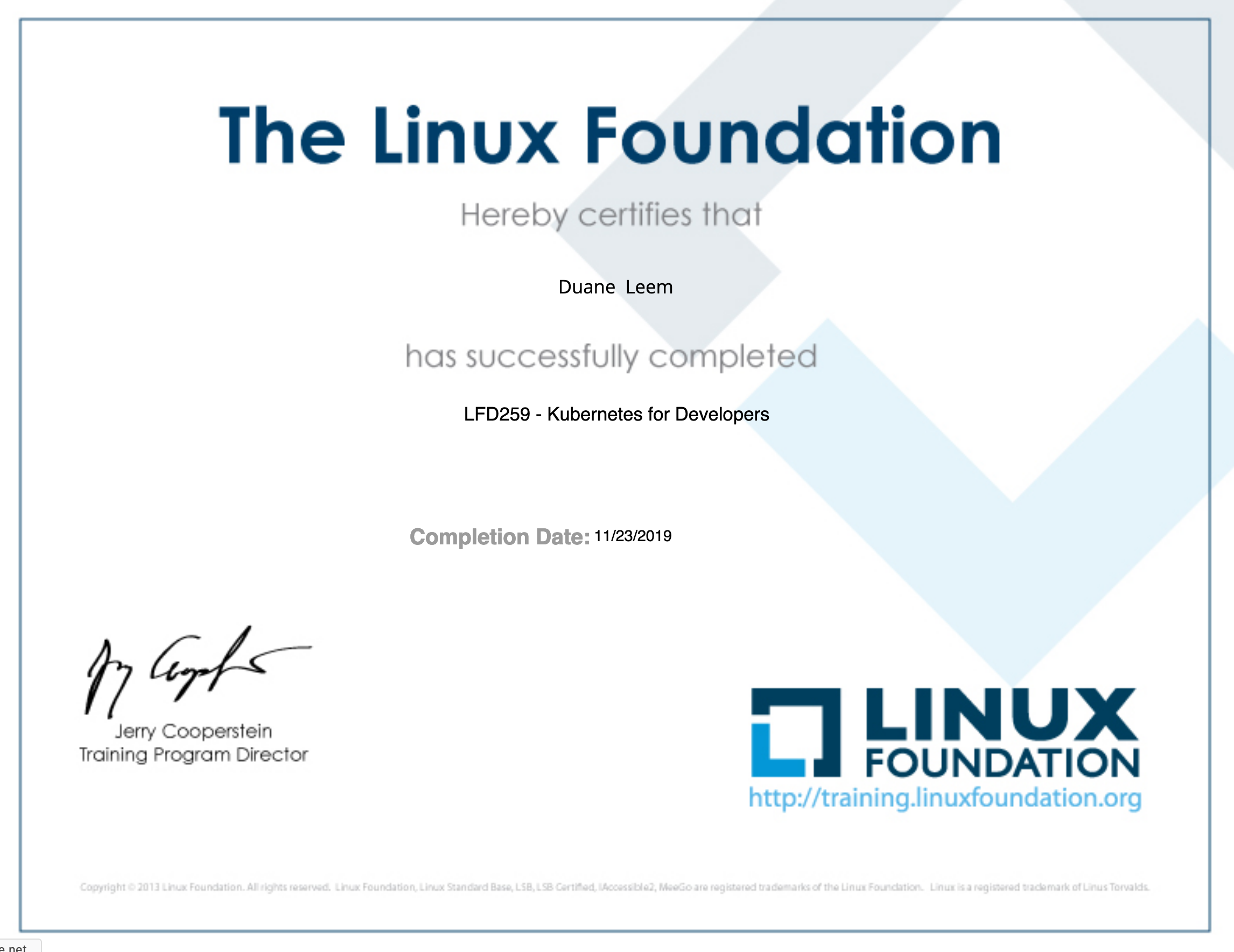
  • Finished The Linux Foundation’s Kubernetes Training Program

    Finished The Linux Foundation’s Kubernetes Training Program

    After several months of training from The Linux Foundation, I finished their program 🙂

    This training program has helped me learn more about Kubernetes and its components. I have several pods running in our production environment and by going through this program, it has given me more tools to help support my company that uses Kubernetes to help scale our web infrastructure.

    I took the training from The Linux Foundation located here.

  • Finished edX Kubernetes Course

    Finished edX Kubernetes Course

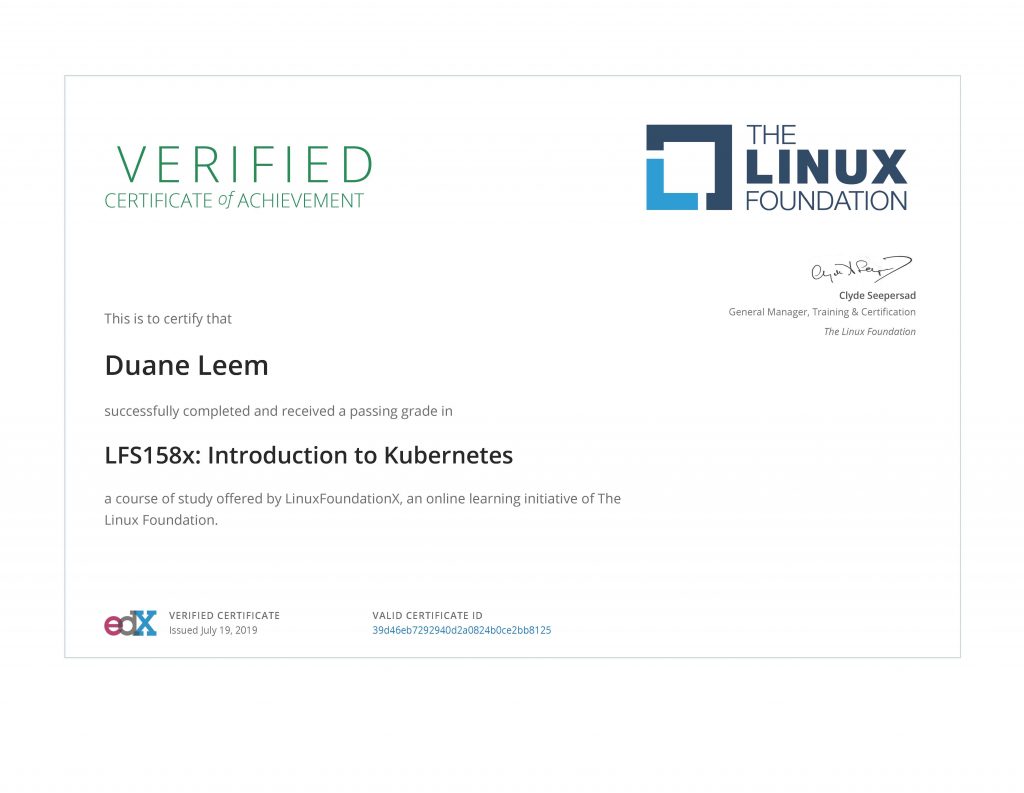
    Kubernetes has helped me at my job so much that I want to fully deep dive into the technology! I just finished The Linux Foundations course on Kubernetes 🙂

    edX - Introduction to Kubernetes
    LFS158x: Introduction to Kubernetes

  • Local WordPress Development

    Local WordPress Development

    About

    The purpose of this guide is to help you create a local WordPress development server on your laptop using Docker.

    Requirements

    • You have Docker installed.
    • You already know how to use Docker.
    • Create a project folder that will contain all these files. This can be anywhere on your computer. Example: ~/Code/WordPress-Test

    Create MySQL Docker Container

    Create a new MySQL instance (if you don’t already have one) so your WordPress can use it as its database. Save the following to the root of your project folder.

    Run the following:


    docker-compose up -d

    Before running a WordPress container, create a schema. For this example, I’ll use the schema name “wordpress-dev”.

    Create WordPress Docker Container

    Use the following Gist to create your Docker container.

  • AWS Certified DevOps Engineer – Professional

    AWS Certified DevOps Engineer – Professional

    About

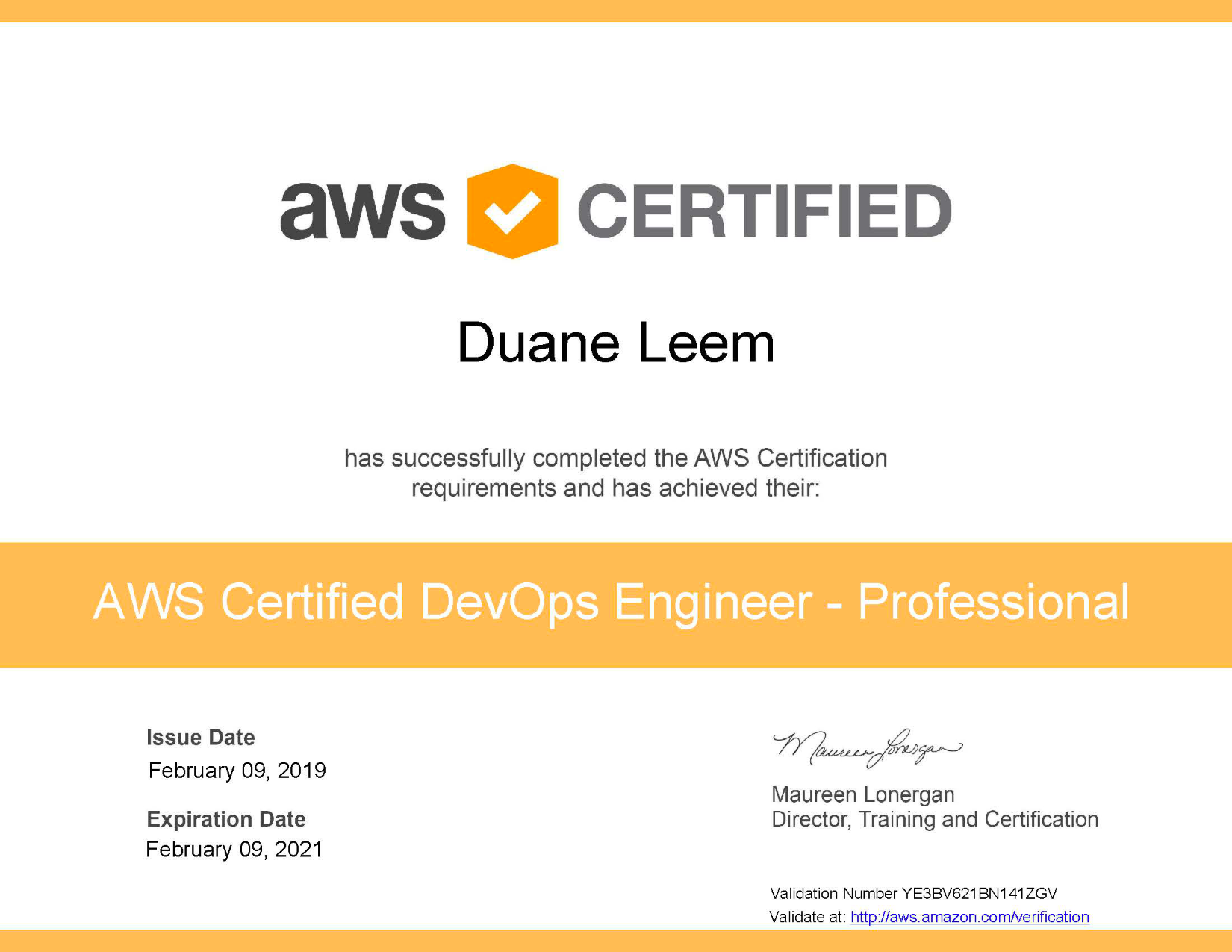
    I’m excited to share that I passed the AWS Certified DevOps Engineer – Professional certification! I’ve spent many months watching videos, studying, and applying what I’ve learned. It’s such a blessing after seeing the results after a grueling 3-hour test.

    I’ve learned so much during the process. The whole process has opened my mind on how I can improve my development processes and also applying solutions.

    In this blog post, I will share to the best of my ability on how I studied and trained for this difficult exam.

    Finding the Mission

    I work with AWS every day and I wanted to go even further on how I scale my servers. I wanted to find more ways to save my organizations more money. Additionally, I want to automate deployment processes from various environments using AWS and find the best ways to protect my organizations from cyber attacks.

    I felt the best way to do this was to certify my current knowledge and also learn more best practices. While I’ve been using AWS for many years, by undergoing the certification process, I felt I would go beyond what I currently know.

    After becoming AWS DevOps certified, I’ve learned new tools and techniques to apply to my work. I feel it is such a huge gain in knowledge.

    Experience as an AWS Administrator and Programmer

    I’ve been using AWS since 2012 (estimating). I’ve also been using AWS in all my environments. I have many applications deployed to production.

    This has helped me in passing the exam, but I felt the biggest contributing factors were because I’ve done large amount of hours doing personal projects and spending many hours/days in AWS.

    If you’ve been deploying web applications to production for many years, you will need to go beyond your experience and also learn best practices to further improve your development process.

    With a combination of my experience and also the grit I had in passing the exam, I’ve spent many days/hours dedicating myself to studying and applying.

    Experience helps, but practicing and studying helped bridge the gap. It helped me learn new ways on using AWS.

    Schedule the Exam

    I felt the best way to push myself to ensure I am ready for the test was to set the exam schedule. I started studying for the AWS DevOps Professional Certification in early 2018. I was off and on but I started to go further in my studies in October 2018.

    I knew I would aim to take the test before my AWS Developer Associate certification would expire (in February 2019). In December, I set my exam schedule on February 2019.

    After setting that date, I put in even more time towards studying and applying what I’ve learned. If you are serious in getting certified, I highly suggest you set a date and commit to it. It will put further emphasis on your intent to study.

    Find Support

    In progress…

    Study Schedule

    In progress…

    Use What You Learned

    In progress…

    Practice Exams

    In progress…

    Learning Resources

    I used the following services to assist me in my professional training towards the certification:

  • Immutable WordPress Example

    Immutable WordPress Example

    One of my goals to improve security and availability is to containerize my applications and use a Microservices architecture.  I’ve separated MySQL and WordPress and placed them in their own containers.

    By creating immutable instances of an application that is highly mutable, I’m able to destroy/recreate on the fly should something happen to my WordPress applications.

    I’ll explain how these two containers are created.

    MySQL docker-compose.yaml

    I’ve made a universal docker-compose.yaml that takes advantage of an external MySQL DB container: To visit, click the following button.

    I’ve noted the following areas in the configuration and why I chose to implement them this way:

    ConfigDescription
    imagemysql:5.6

    This is the MySQL version I’m using. WordPress supports MySQL and MariaDB (latest versions)
    network_modenetwork_mode: bridge

    If you’re running standalone containers that need to communicate with each other, use bridge mode.
    volumesvolumes: – db_data:/var/lib/mysql

    I’ve created a persistent volume. When bringing down the container and restoring it, the contents of MySQL is kept.
    portsI’ve opened these two ports to communicate with it directly with a client.  Turn this off to close the ports entirely from the outside world.
    exposeExposing 3306 within Docker will help other containers communicate with it.  In fact, you need this exposed.
    restartrestart: always

    As the name suggests, always restart the container should something happen to it (system restart, container restart, container crashes, etc).
    container_namecontainer_name: db-mysql-main

    I’ve explicitly gave my container a name.  Not the best practice if you’re looking at scaling.  Feel free to omit this unless you want to use a single container throughout its lifecycle.
    environmentThe official MySQL container has several environmental variables you can take advantage to interact directly with the management of the service.  See the official MySQL Docker for more information.

    WordPress docker-compose.yaml

    Creating a MySQL container is pretty straight explanatory.  The hardest part of these two configurations is putting together a docker-compose.yaml file for a WordPress container.  To view the example configuration, click the following link:

    ConfigDescription
    imageimage: wordpress:4.9.8-php5.6-apache

    Official WordPress image.  You should probably use a PHP7 version.
    network_modenetwork_mode: bridge

    If you’re running standalone containers that need to communicate with each other, use bridge mode.
    volumesThe following volumes need to be mapped to the contents remain consistent:
    – /wp-content/themes
    – /wp-content/plugins
    -/wp-content/uploads
    -/.htaccess

    Add a custom .htaccess. A very good feature for this is to map assets to the live version of your website if this is a sandbox version.  See this section on how that .htaccess would look like.
    portsports:
    – “8080:80”

    I used port 8080 to serve my HTTP page.  Feel free to change that to whatever you want.  The internal port is your standard port 80.
    restartrestart: always

    As the name suggests, always restart the container should something happen to it (system restart, container restart, container crashes, etc).
    container_namecontainer_name: wp-test

    I’ve explicitly gave my container a name.  Not the best practice if you’re looking at scaling.  Feel free to omit this unless you want to use a single container throughout its lifecycle.
    environmentEnvironmental variables go here.  I’ve used the standard variables that you’ll need to get WordPress running.  Visit this page to know other variables you may need to use if needed.

    Most notably, you can add additional configurations outside your standard configurations using WORDPRESS_CONFIG_EXTRA

    Launching Containers

    Launch the following configurations in this exact order:

    • MySQL docker-config.yaml
    • WordPress docker-config.yaml

    I have these configurations in their own folder.  In each folder, execute the containers by executing the following:


    docker-compose up -d
  • Installing and Configuring Kubernetes with Docker on MacOS

    Installing and Configuring Kubernetes with Docker on MacOS

    Install Kubernetes for MacOS

    Installing Kubernetes (K8S) with Docker installed on my machine caused an error:

    The connection to the server was refused – did you specify the right host or port?

    I tried the following:

    • Installed manually via: curl -LO https://storage.googleapis.com/kubernetes-release/release/$(curl -s https://storage.googleapis.com/kubernetes-release/release/stable.txt)/bin/darwin/amd64/kubectl 
    • Installed via Homebrew: brew install kubernetes-cli

    I found that installation of K8S can be done through Docker.  Do the following to automate the installation of K8S on your machine (mine is MacOS):

    • On MacOS menu bar, click on Docker.
    • Click: Preferences
    • Click: Kubernetes
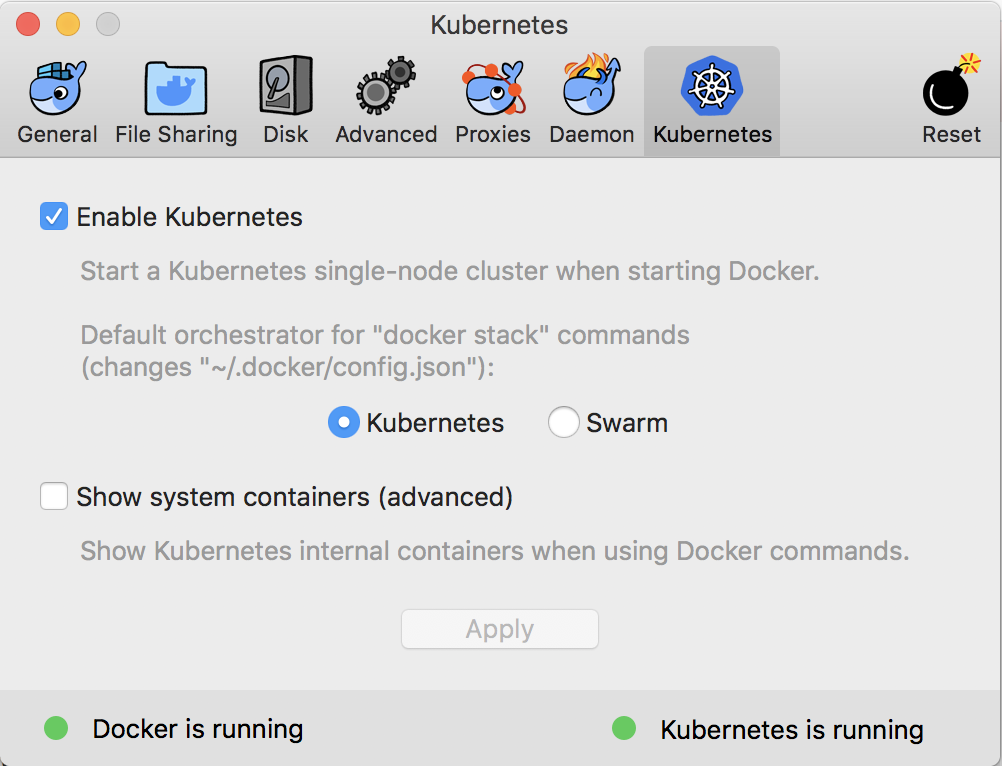
    • Checkbox: Enable Kubernetes
    • Select Kubernetes
    • Click: Apply

    The UI should look the following:

    Kubernetes Section of Docker UI Configuration

    Install Minikube

    Do the following to use Homebrew to install Minikube:

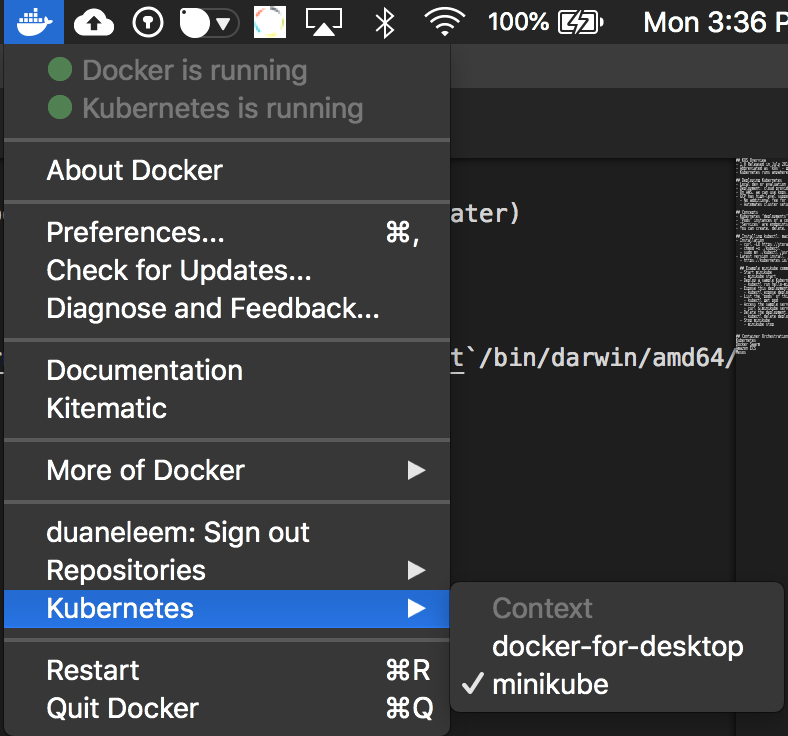
    Switch between Docker for Desktop or minikube by clicking on the Docker icon on the menu bar, hover to Kubernetes, and choose the driver.

    Uninstall Minikube

    The latest Docker for MacOS (Docker v18) comes with Kubernetes built-in and we don’t need to use Minikube for local development.  We can use docker-for-desktop! 🙂

    • brew cask uninstall minikube
    • kubectl config delete-context minikube

    Switching Context

    We can switch between Docker for Desktop (DFD) and Minikube with two ways. One way is through kubectl

    • Get a listing: kubectl config get-contexts
    • Switch to DFD: kubectl config use-context docker-for-desktop
    • Minikube: kubectl config use-context minikube

    The alternative is using Docker for Desktop menu:

    kubectl Commands

    Some of the commands I use commonly on Kubernetes.

    Apply yaml Configkubectl apply -f ./deployment.yaml
    Export Portkubectl expose deployment tomcat-deployment –type=NodePort
    Service Detailskubectl describe service/tomcat-deployment
  • HTML Redirect

    HTML Redirect

    Use the following to automatically forward someone using just HTML 🙂


    <meta http-equiv="refresh" content="5; url=http://example.com/">

    Place this in the <head> tag.

  • AWS Lambda & API Gateway

    AWS Lambda & API Gateway

    The body response of Lambda must output a format that is acceptable to AWS API Gateway.  An example NodeJS code with the appropriate callback will ensure a successful 200 OK response:


    'use strict';

    console.log('Loading function');

    exports.handler = (event, context, callback) => {
        var responseBody = {
            "key3": event.queryStringParameters.key3,
            "key2": event.queryStringParameters.key2,
            "key1": event.queryStringParameters.key1
        };

        var response = {
            "statusCode": 200,
            "headers": {},
            "body": JSON.stringify(responseBody),
            "isBase64Encoded": false
        };
       
        // In order for AWS API Gateway to work, the response must
        // be in the format of the "response" variable as shown above.
        callback(null, response);
    };

    You can find more information from the sources below.

  • Multiple AWS CLI Profiles

    Multiple AWS CLI Profiles

    Work with multiple AWS sessions and get tired of switching accounts manually?  Use the following commands to automatically switch between AWS accounts!


    aws configure --profile user2

    To use from your command prompt, here’s an example:


    aws ec2 describe-instances --profile user2

    I needed this functionality since I work with multiple AWS sessions.  The full documentation can be found on the links below.