Category: Amazon Web Services

As a AWS Developer, I keep notes of some of the knowledge I come across on Amazon Web Services such as EC2, RDS, CloudFront, CloudFormation, Lambda.

Looking to get the most of my experience with AWS, I’m also a certified AWS Developer and currently working on improving my knowledge by working on the AWS DevOps professional certification.

  • Change AWS RDS Instance Size

    Change AWS RDS Instance Size

    Vertical scaling in Amazon RDS involves changing the instance type to one with different computational, memory, and storage resources. Here’s a step-by-step guide for vertical scaling of an RDS instance running MySQL:

    Preparation Steps:

    1. Backup Data: Ensure you have a recent snapshot or backup of your database. Amazon RDS automated backups can be useful here.
    2. Maintenance Window: Identify a maintenance window where user impact will be minimal, as the scaling operation may result in downtime.
    3. Performance Metrics: Check your current resource utilization to select an appropriate instance type for scaling down.
    4. Test Environment: If possible, replicate the scaling process in a test environment to identify any potential issues.

    Scaling Operation:

    1. Login to AWS Console: Navigate to the RDS section.
    2. Select Database: Go to the “Databases” tab and click on the DB instance that you want to scale.
    3. Modify Instance: Click on the “Modify” button.
    4. Choose Instance Type: Scroll down to the “DB instance class” section and select the new instance type you want to switch to.
    5. Apply Changes: You have two options here:
    • Apply immediately: Your changes will be applied as soon as possible, resulting in immediate downtime.
    • Apply during the next maintenance window: Your changes will be applied automatically during your next scheduled maintenance window, minimizing unplanned downtime.
    1. Confirm and Modify: Review the changes and click on the “Modify DB Instance” button to initiate the scaling operation.

    Post-Scaling Steps:

    1. Monitor: Keep an eye on performance metrics to ensure that the new instance is operating as expected.
    2. Update DNS if Necessary: If the RDS endpoint has changed, update your application configurations to point to the new endpoint.
    3. Update Alarms and Monitoring: Adjust any CloudWatch Alarms or custom monitoring settings to suit the new instance type.
    4. Optimization: You might also need to optimize database queries or configurations to better suit the new hardware.
    5. Rollback Plan: Be prepared to rollback in case the new instance type does not meet your requirements.

    Resources

  • Installing Ruby on Amazon Linux 2

    Installing Ruby on Amazon Linux 2

    Running into a problem installing Ruby on your Amazon Linux 2 machine?

    I was able to successfully install Ruby and also rvm by doing the following:


    sudo yum install gcc

    gpg2 --keyserver hkp://pgp.mit.edu --recv-keys 409B6B1796C275462A1703113804BB82D39DC0E3 7D2BAF1CF37B13E2069D6956105BD0E739499BDB

    source ~/.rvm/scripts/rvm

    rvm get head

    rvm list known

    # Install from one of the Ruby versions from the list.
    rvm install 3.0.2

    ruby --version

    Sources

  • Upgrade Amazon Lightsail Bitnami WordPress using All-in-One WP Migration Plugin

    Upgrade Amazon Lightsail Bitnami WordPress using All-in-One WP Migration Plugin

    One of the hardest problems with upgrading the Amazon Lightsail Bitnami WordPress is upgrading PHP.

    In this walkthrough, I’ve detailed the steps that I’ve taken to upgrade from an older Bitnami WP Lightsail to their latest image 🙂

    Note the following:
    – This post is a work in progress and I will provide additional details continuously.
    – Also, you will need a “Unlimited Extension” purchased from the plugin vendor.

    What We Need to Do

    The steps we’ll be doing at a high level:

    • Download the WP Plugin: All-in-One WP Migration plugin
    • Install the new plugin.
    • Create a backup with the new plugin.
    • Export and download your new backup file.
    • Deploy the latest AWS Lightsail for Bitnami WordPress
    • Download the PEM file associated to the new server.
    • Detach static IP from old server to new Bitnami WP server.
    • Change All-in-One backup folder ownership temporarily to allow SFTP via SSH
    • Use FTP software to SFTP to new server and upload the backup file to AIO backup folder.
    • Change AIO backup folder ownership back to original folder ownership.
    • In /wp-admin AIO backup, restore from backup file.

    Download the WP Plugin

    Install the AIO plugin from /wp-admin -> Plugins -> Add New

    Search for “all in one WP migration” as shown below and click “Install Now” from ServMask:

    Create a Backup with the New Plugin

    From All-in-One WP Migration (/wp-admin menu), click Backups

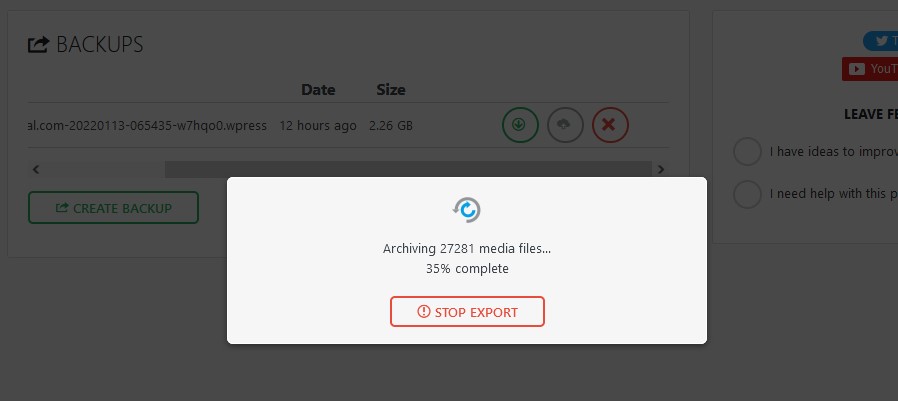
    Click “Create Backup” and you should see the progress:

    When that is completed, click the green arrow on the right of the new backup to download it.

    Deploy the latest Amazon Lightsail for Bitnami WordPress

    The following steps will help us deploy the latest Bitnami WordPress in Amazon Lightsail:

    • Log on to AWS and open up Amazon Lightsail.
    • Under Instances, click “Create Instance”.

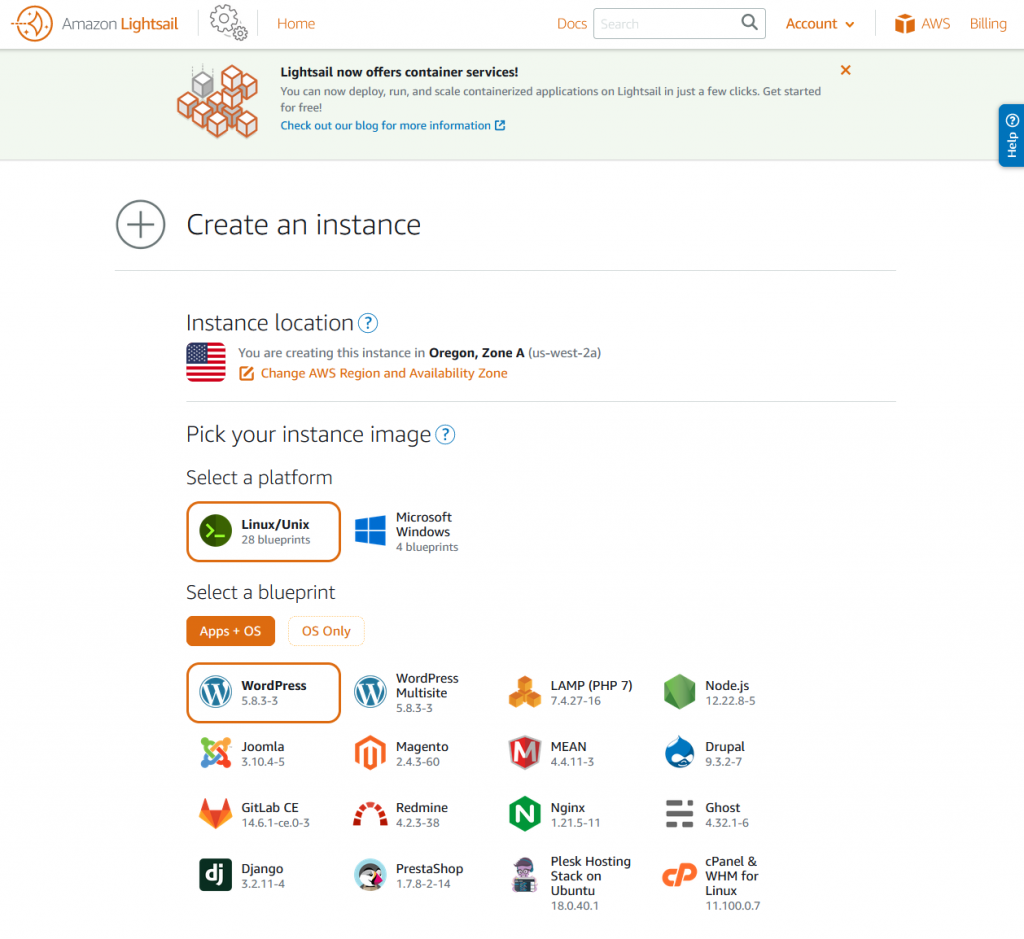
    You’ll be presented with a selection of instances you can launch. You’ll see the latest supported WordPress version. As of this writing, it is version 5.8.3.

    Amazon Lightsail - Select Instance

    Scrolling down you’ll find more options. The most notable options you’ll want to pay attention to:

    • Change SSH key pair
    • Choosing an instance plan
    • Identify your instance

    Change SSH key pair

    I left it at default but this will be used to SSH/SFTP into your machine. You’ll be able to download the default key later if you haven’t done so already. I’ll cover that more later.

    Choosing an instance plan

    Up to you, but if it’s for testing do the $3.5 🙂 I recommend the $5 if this is your main instance. You could scale up later on.

    Identify your instance

    Any name will work here.

    Download the PEM file associated to the new server

    In order to connect to your server through your SFTP application, you ‘ll need the username and the private key associated to your Lightsail server.

    Get Username

    Do the following to attain the username:

    1. Ensure you’re in the Amazon Lightsail section of AWS 😉
    2. Under instances, click on the title of the instance you want to manage.
    3. Under connect, you’ll find your username. Most likely “bitnami” since you’re using a Bitnami image.

    Get Private Key

    From the Amazon Lightsail administrative screen:

    1. Under instances, view which region your server is located. It’s located as the last line in the gray card. If you’re from the USA, it could be either Oregon, Ohio, Virginia.
    2. From the top-right, click: Account
    3. From the drop down, click: Account
    4. Click “SSH Keys”
    5. Download the associated SSH key that works with your server. It’ll usually list out which key is associated to which region.

    Detach static IP from old server to new Bitnami WP server

    In Progress 😊

  • Amazon Linux 2, Apache 2.4, PHP 7.3

    Amazon Linux 2, Apache 2.4, PHP 7.3

    In this guide, I will explain the steps necessary to create an Amazon Linux 2 server with:

    • Apache 2.4
    • PHP 7.3
    • Common PHP modules.
    • No RDBMS (MySQL / MariaDB) – We won’t need that as you’re using RDS 🙂

    Revision History

    • 2019-11-25: mcrypt Installation Instructions
    • 2019-11-24: Initial creation.

    Step 1: Follow AWS Guide on LAMP

    AWS created an awesome documentation on spinning up Amazon Linux 2 with LAMP. Follow steps 1 & 2 and forget about the other steps if you’re using RDS as your database provider (or another DB server).

    Step 2: Disable PHP 7.2 amazon-linux-extras

    If you went through Step 1, you now have LAMP 7.2 installed. You’re probably thinking, “wait a minute, I want PHP 7.3!”

    This is where it is tricky, but I’m here to make it easy for you 😉 First, you need to disable the amazon-linux-extras PHP7.2 you just installed:


    sudo amazon-linux-extras disable php7.2
    sudo amazon-linux-extras disable lamp-mariadb10.2-php7.2

    Next, you will need to enable the PHP 7.3 packages:


    sudo amazon-linux-extras enable php7.3

    # Additional PHP addons you'll most likely need.
    sudo yum install php-cli php-pdo php-fpm php-json php-mysqlnd

    # Disable php7.3
    # See "Updating Your Server"
    sudo amazon-linux-extras disable php7.3

    That’s it! Whenever you need to do an update on your server (using yum update), see the next section about that.

    Updating Your Server

    For server maintenance, run the following:


    # Update LAMP
    sudo amazon-linux-extras enable lamp-mariadb10.2-php7.2
    sudo yum update -y
    sudo amazon-linux-extras disable lamp-mariadb10.2-php7.2

    # Update php7.3
    sudo amazon-linux-extras enable php7.3
    sudo yum update -y
    sudo amazon-linux-extras disable php7.3

    Optional PHP Modules

    mcrypt

    Some of your legacy applications may rely on mcrypt. I’ve detailed the following on installing mcrypt and updating it to mcrypt 1.0.2.

    This module is also deprecated per official PHP documentation. While this may work for the time being, your ultimate goal is to develop using something else.

    To bake mcrypt into your server:


    sudo yum install libmcrypt-dev

    Future Updates: What if PHP 7.4 comes out and I need to update to that?

    While PHP 7.4 isn’t out yet, I do get your concern. It’ll be the same process as we upgraded from PHP 7.2 to PHP 7.3.

    First, we need to disable PHP 7.3:


    sudo amazon-linux-extras disable php7.3

    Next, we need to enable the future PHP 7.4:


    sudo amazon-linux-extras enable lamp-mariadb10.2-php7.2
    sudo yum update -y
    sudo amazon-linux-extras disable lamp-mariadb10.2-php7.2
    sudo amazon-linux-extras enable php7.4
    sudo yum update -y
    udo amazon-linux-extras disable php7.4

    Resources

    The following resources has helped me with this setup. I am grateful for their shared knowledge.

  • AWS Certified DevOps Engineer – Professional

    AWS Certified DevOps Engineer – Professional

    About

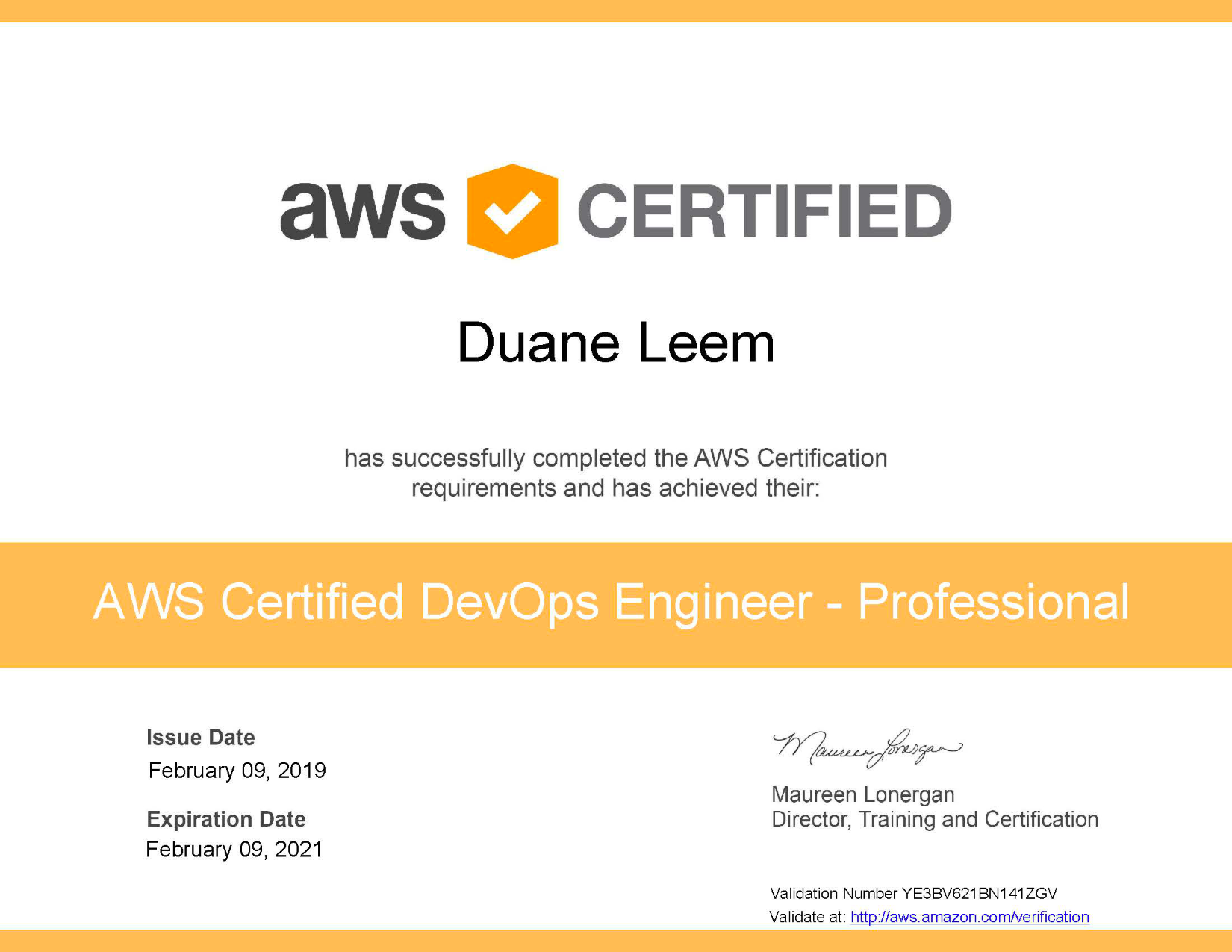
    I’m excited to share that I passed the AWS Certified DevOps Engineer – Professional certification! I’ve spent many months watching videos, studying, and applying what I’ve learned. It’s such a blessing after seeing the results after a grueling 3-hour test.

    I’ve learned so much during the process. The whole process has opened my mind on how I can improve my development processes and also applying solutions.

    In this blog post, I will share to the best of my ability on how I studied and trained for this difficult exam.

    Finding the Mission

    I work with AWS every day and I wanted to go even further on how I scale my servers. I wanted to find more ways to save my organizations more money. Additionally, I want to automate deployment processes from various environments using AWS and find the best ways to protect my organizations from cyber attacks.

    I felt the best way to do this was to certify my current knowledge and also learn more best practices. While I’ve been using AWS for many years, by undergoing the certification process, I felt I would go beyond what I currently know.

    After becoming AWS DevOps certified, I’ve learned new tools and techniques to apply to my work. I feel it is such a huge gain in knowledge.

    Experience as an AWS Administrator and Programmer

    I’ve been using AWS since 2012 (estimating). I’ve also been using AWS in all my environments. I have many applications deployed to production.

    This has helped me in passing the exam, but I felt the biggest contributing factors were because I’ve done large amount of hours doing personal projects and spending many hours/days in AWS.

    If you’ve been deploying web applications to production for many years, you will need to go beyond your experience and also learn best practices to further improve your development process.

    With a combination of my experience and also the grit I had in passing the exam, I’ve spent many days/hours dedicating myself to studying and applying.

    Experience helps, but practicing and studying helped bridge the gap. It helped me learn new ways on using AWS.

    Schedule the Exam

    I felt the best way to push myself to ensure I am ready for the test was to set the exam schedule. I started studying for the AWS DevOps Professional Certification in early 2018. I was off and on but I started to go further in my studies in October 2018.

    I knew I would aim to take the test before my AWS Developer Associate certification would expire (in February 2019). In December, I set my exam schedule on February 2019.

    After setting that date, I put in even more time towards studying and applying what I’ve learned. If you are serious in getting certified, I highly suggest you set a date and commit to it. It will put further emphasis on your intent to study.

    Find Support

    In progress…

    Study Schedule

    In progress…

    Use What You Learned

    In progress…

    Practice Exams

    In progress…

    Learning Resources

    I used the following services to assist me in my professional training towards the certification:

  • AWS Lambda & API Gateway

    AWS Lambda & API Gateway

    The body response of Lambda must output a format that is acceptable to AWS API Gateway.  An example NodeJS code with the appropriate callback will ensure a successful 200 OK response:


    'use strict';

    console.log('Loading function');

    exports.handler = (event, context, callback) => {
        var responseBody = {
            "key3": event.queryStringParameters.key3,
            "key2": event.queryStringParameters.key2,
            "key1": event.queryStringParameters.key1
        };

        var response = {
            "statusCode": 200,
            "headers": {},
            "body": JSON.stringify(responseBody),
            "isBase64Encoded": false
        };
       
        // In order for AWS API Gateway to work, the response must
        // be in the format of the "response" variable as shown above.
        callback(null, response);
    };

    You can find more information from the sources below.

  • Multiple AWS CLI Profiles

    Multiple AWS CLI Profiles

    Work with multiple AWS sessions and get tired of switching accounts manually?  Use the following commands to automatically switch between AWS accounts!


    aws configure --profile user2

    To use from your command prompt, here’s an example:


    aws ec2 describe-instances --profile user2

    I needed this functionality since I work with multiple AWS sessions.  The full documentation can be found on the links below.

  • IAHSP Europe

    IAHSP Europe

    We have a new website that I helped put together with my team.  We used WordPress, Angular 5, Google Cloud Functions, and AWS.

    I’m very proud of the work everyone did to help build such an awesome website.  I’m especially proud to be part of a global association for all Home Stagers across the world.

  • BeWorkPlace.com

    BeWorkPlace.com

    Completed an AWS deployment project for a WordPress website using AWS Lightsail, RDS, S3, CloudFront, CloudWatch 😀

    Visit their website at BeWorkPlace.com

  • BrentwoodRotary94513.com

    BrentwoodRotary94513.com

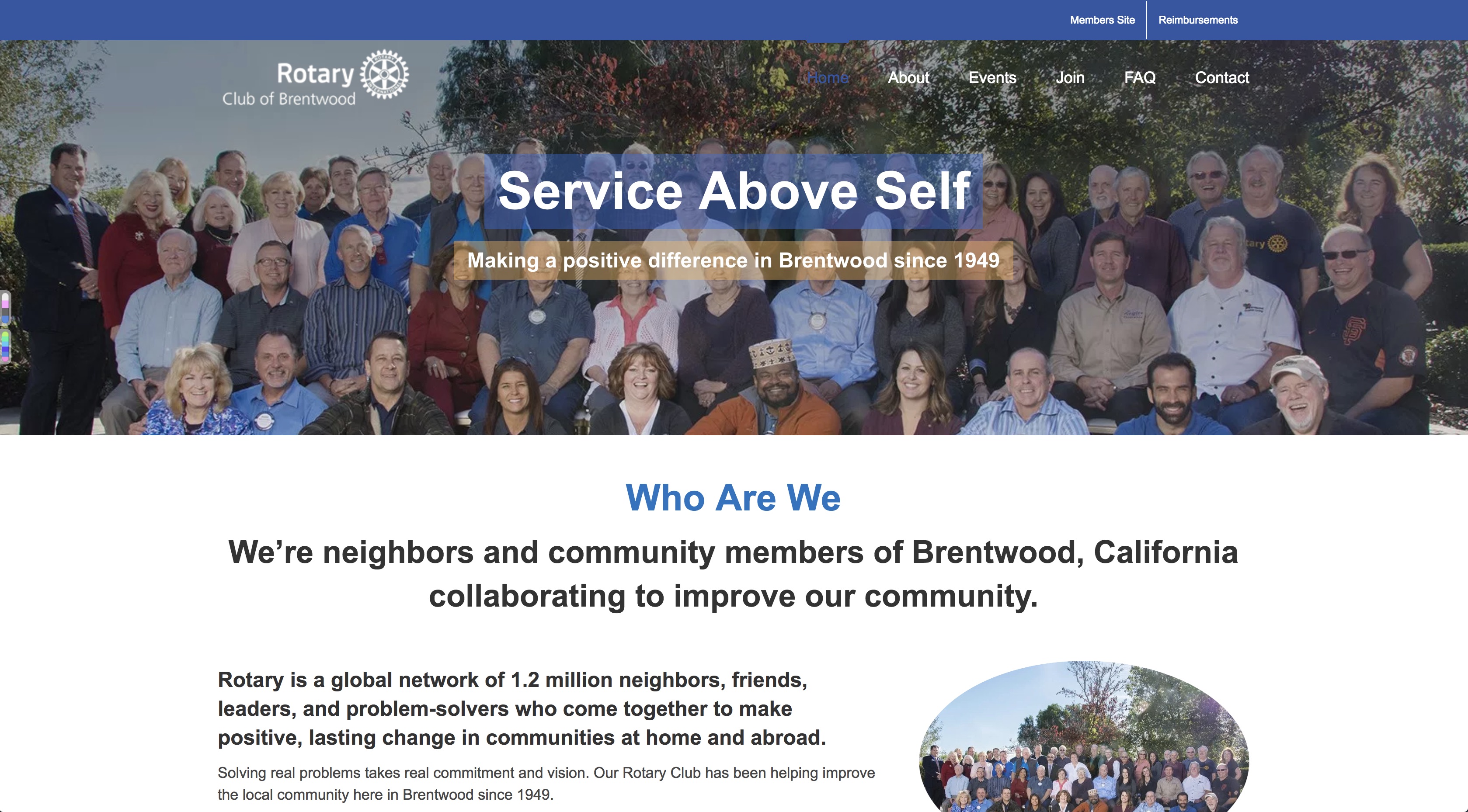
    Completed a DevOps project for the Brentwood Rotary using AWS Lightsail, RDS, S3, CloudFront, CloudWatch.

    Brentwood Rotary

    Visit their website at: BrentwoodRotary94513.com