Category: DevOps

  • IAHSP Europe

    IAHSP Europe

    We have a new website that I helped put together with my team.  We used WordPress, Angular 5, Google Cloud Functions, and AWS.

    I’m very proud of the work everyone did to help build such an awesome website.  I’m especially proud to be part of a global association for all Home Stagers across the world.

  • Installing cURL on Windows for Slack Notifications

    Installing cURL on Windows for Slack Notifications

    Do the following steps to install cURL on a Windows OS.  I mainly use cURL on Windows Servers to notify me of certain events via API.

    Installing cURL

    • Download cURL
      • Make sure to download the one from: Viktor Szakats
      • Extract the contents to: c:\curl
    • Download the cacert.pem
      • Extract this to where curl.exe is located. Typically, this is located in c:\curl\bin
      • Rename this file to: curl-ca-bundle.crt

    Add as Environment Variable

    Credits to CharlesNadeau on the following guide.

    1. In the Start menu, right-click This PC and select More > Properties.
      Note: In Windows 7, right-click Computer and select Properties.
    2. Click Advanced System Settings.
    3. In the Advanced tab, click the Environment Variables button on the lower right side.
    4. Select the “Path” variable in System Variables, and click Edit.
    5. In the Edit environment variable dialog box, click New and add the path to the curl.exefile. Example: C:\curl.

    Slack Notification API Example

    Use the following to send a curl to a Slack hook.

    C:\curl\curl-7.59.0-win64-mingw\bin\curl.exe -k -g -X POST -d "payload={\"text\":\"This is the notification in the body of Slack.\", \"channel\":\"#channel\", \"username\":\"FIRSTNAME LASTNAME\", \"icon_emoji\":\":thumbsup:\"}" https://hooks.slack.com/services/API_URL
    

    Credits:

  • BeWorkPlace.com

    BeWorkPlace.com

    Completed an AWS deployment project for a WordPress website using AWS Lightsail, RDS, S3, CloudFront, CloudWatch 😀

    Visit their website at BeWorkPlace.com

  • BrentwoodRotary94513.com

    BrentwoodRotary94513.com

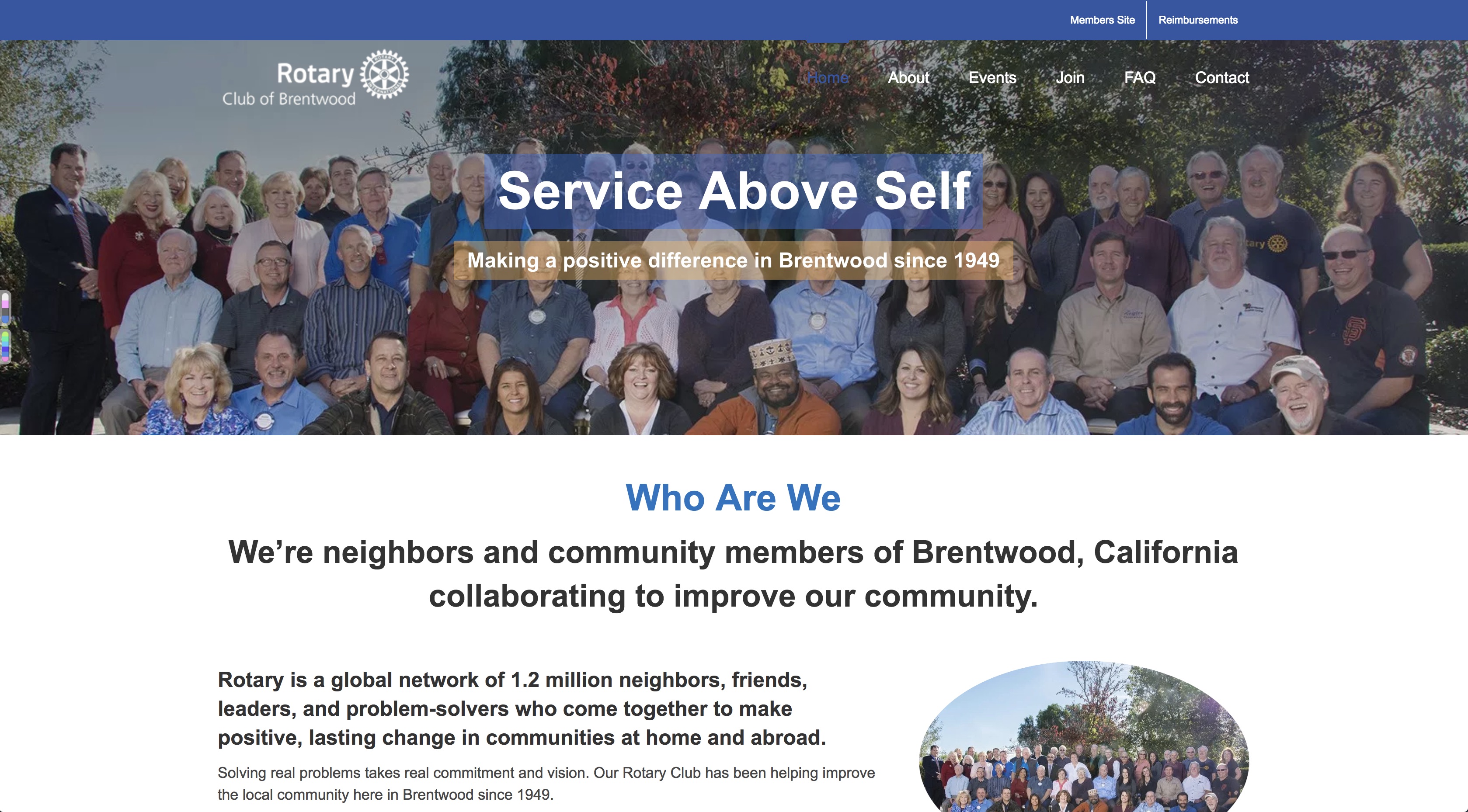
    Completed a DevOps project for the Brentwood Rotary using AWS Lightsail, RDS, S3, CloudFront, CloudWatch.

    Brentwood Rotary

    Visit their website at: BrentwoodRotary94513.com

  • Updating Running Docker Container

    Updating Running Docker Container

    The following commands update containers that are already running using Docker Update

    Always restart docker update –restart=always CONTAINER_NAME
    Unless stopped docker update –restart=unless-stopped CONTAINER_NAME
  • Mac OS Terminal Shortcut for “ls -lGaf”

    Mac OS Terminal Shortcut for “ls -lGaf”

    On Ubuntu, I've always used "ll" to quickly get a list of folders/files from a directory.  This quick shortcut isn't built into iTerm for Mac.  Add the following to your ~/.bash_profile

    alias ll='ls -lGaf'

    What does this do?

    • List folders & files.
    • List hidden files.
    • Sorts the output and disregard case-sensitivity.
  • Link to Existing MySQL container from Docker Compose

    Link to Existing MySQL container from Docker Compose

    About

    I’ve been creating multiple docker-compose.yml file.  I’m starting to have a long list of containers for each WordPress project that I create.  Each time I create a new docker-compose.yml for each WordPress project, 2 containers are created (WordPress and a MySQL container).

    What I want to achieve is this:

    • A separate container for each WordPress environment.
    • Have a single MySQL container that will be the centralization for all WordPress environments.

    I’ve originally created a post about creating a docker-compose.yml for a WordPress dev environment.  But that creates a WordPress + MySQL paired network and container setup.

    Solution

    Here’s an example of the solution I’ve created.  Essentially, I’ve added an “external_links” section that references my dev DB called “db-mysql”

    In my “docker-compose.yml”, under the WordPress service, I’ve added:


    network_mode: bridge

    This will stop docker-compose from creating a new network. To learn more about it, click here to visit the official documentation from Docker.

    References

  • Local WordPress Development Environment using Docker

    Local WordPress Development Environment using Docker

    The following are code snippets to enable a localized container for WordPress.  The effort here is to eliminate specific folders from development and leave that up to the production server to serve.

    You also don’t have to worry about WordPress core as that is handled by the official WP Docker store.

    .htaccess

    By utilizing this file, you’ve effectively eliminated the need of having to download your whole /wp-content/uploads folder (which is typically the largest content on your WP site.

    # ==========================================================
    # Redirects uploads to production.
    # ==========================================================
    <IfModule mod_rewrite.c>
     RewriteCond %{REQUEST_FILENAME} !-d
     RewriteCond %{REQUEST_FILENAME} !-f
     RewriteRule ^wp-content/uploads/(.*)$ https://www.DOMAINNAME.com/wp-content/uploads/$1 [R=301,NC,L]
    </IfModule>
    
    # ==========================================================
    # Docker WordPress
    # ==========================================================
    # BEGIN WordPress
    <IfModule mod_rewrite.c>
     RewriteEngine On
     RewriteBase /
     RewriteRule ^index\.php$ - [L]
     RewriteCond %{REQUEST_FILENAME} !-f
     RewriteCond %{REQUEST_FILENAME} !-d
     RewriteRule . /index.php [L]
    </IfModule>
    # END WordPress


    docker-compose.yml

    To automate the creation of the containers, put this on your root project folder:

    Gist: docker-compose.yml

    Create Folders

    Create the following folders from the root of your project:

    • wp-content
    • wp-content/themes
    • wp-content/plugins
    • wp-content/uploads


    Docker Commands

    Use the following commands to start / stop / create / remove your new WP development containers:
    docker-compose up -d Builds your containers.
    docker-compose down Removes containers.
    docker-compose down -v Removes containers and associated volumes stored on your computer.
    docker exec -it container_name bash SSH into the container.


    Next Steps

    From here, you’ll have the assets and local DB/Apache required to make these work.  You’ll STILL get an error message.  The next steps are required to get your production DB + Assets on your computer:

    • Export a fresh copy of your database and make sure you don’t select “create schema” if you’re using something like MySQL Workbench.  I use the following settings in MySQL Workbench:
      • Select all under: Objects to Export
      • Select: Export to Self-Contained File
      • Check: Create dump in a single transaction (self-contained file only)
    • Import the fresh self-contained file using your importer. Important: select “wordpress” as the schema/database you’re importing to.
    • Make sure to update wp_options from your MySQL client/CLI to reflect your local development URL: http://localhost:8080

    This should be sufficient to see your website on your own dev computer.  However, if you’ve hardcoded your URLs on your content, there could be issues.  If you’re reading this, I’m sure you already know how to fix those 🙂

  • Setting Cache-Control Header

    Google PageSpeed Insights is giving me one of the criterias that requires some work:

    Leverage browser caching

    I’m using Amazon S3 + CloudFront to serve my static assets.  To set the HTTP headers for Cache-Control, I used an application on Windows called “CloudBerry Explorer for Amazon S3”.

    The application lets me manage many different types of server storage, including AWS S3.  To update multiple file headers:

    • In CloudBerry Explorer for Amazon S3, right click the file(s) and select: Set HTTP Headers
    • Click: Add
    • Use the following settings:
      • Http Header: Cache-Control
      • Value: max-age=604800

    max-age is in seconds.  Converting 604800 seconds will be equivalent to 1 week.

  • AWS CLI Error using AWS CodeBuild

    I’ve created a CI/CD implementation of building my Angular 4 applications on AWS S3.  Here’s one of my YAML configuration:

    version: 0.2
    
    env:
        variables:
            S3_BUCKET: "s3-bucket-name"
            BUILD_ENV: "prod"
            CLOUDFRONT_ID: "EXX11223344"
                
    phases:
        install:
            commands:
            - echo Installing source NPM dependencies...
            # Need https driver.
            - sudo apt-get update -y
            - sudo apt-get install -y apt-transport-https
            # Install Yarn.
            - curl -sS https://dl.yarnpkg.com/debian/pubkey.gpg | sudo apt-key add -
            - echo "deb https://dl.yarnpkg.com/debian/ stable main" | sudo tee /etc/apt/sources.list.d/yarn.list
            - sudo apt-get update -y
            - sudo apt-get install -y yarn
            # Install Angular CLI
            - yarn global add @angular/[email protected]
            # Install node dependancies.
            - yarn
        build:
            commands:
            # Builds Angular application.
            - echo Build started on `date`
            - ng build --${BUILD_ENV}
        post_build:
            commands:
            # Clear S3 bucket.
            - aws s3 rm s3://${S3_BUCKET} --recursive
            - echo S3 bucket is cleared.
            # Copy dist folder to S3 bucket
            - aws s3 cp dist s3://${S3_BUCKET} --recursive
            # STEP: Clear CloudFront cache.
            - aws configure set preview.cloudfront true
            - aws cloudfront create-invalidation --distribution-id ${CLOUDFRONT_ID} --paths "/*"
            - echo Build completed on `date`
    artifacts:
        files:
            - '**/*'
        discard-paths: yes
        base-directory: 'dist*'
    

    Problem

    I’m getting build errors at the “post_build” phase: An error occurred (AccessDenied) when calling the PutObject operation: Access Denied

    So this appears to be a permission issue which was not taken care of at the AWS policy level.  My old AWS policy for this CodeBuild project:

    {
        "Version": "2012-10-17",
        "Statement": [
            {
                "Sid": "Stmt1506491253000",
                "Effect": "Allow",
                "Action": [
                    "cloudfront:CreateInvalidation"
                ],
                "Resource": [
                    "*"
                ]
            },
            {
                "Sid": "Stmt1506491270000",
                "Effect": "Allow",
                "Action": [
                    "s3:DeleteObject",
                    "s3:ListBucket",
                    "s3:ListObjects",
                    "s3:PutObject",
                    "s3:PutObjectAcl"
                ],
                "Resource": [
                    "arn:aws:s3:::s3-bucket-name"
                ]
            }
        ]
    }
    

    After several troubleshooting steps, and a run to Jack in The Box, I believe I was missing adding additional resources.

    Solution

    Thinking about the error more and more that I realized I also needed to add the additional resource entry for all files/folders (not just the bucket).  Here’s the solution on the AWS Policy:

    {
        "Version": "2012-10-17",
        "Statement": [
            {
                "Sid": "Stmt1506491253000",
                "Effect": "Allow",
                "Action": [
                    "cloudfront:CreateInvalidation"
                ],
                "Resource": [
                    "*"
                ]
            },
            {
                "Sid": "Stmt1506491270000",
                "Effect": "Allow",
                "Action": [
                    "s3:DeleteObject",
                    "s3:ListBucket",
                    "s3:ListObjects",
                    "s3:PutObject",
                    "s3:PutObjectAcl"
                ],
                "Resource": [
                    "arn:aws:s3:::s3-bucket-name",
                    "arn:aws:s3:::s3-bucket-name/*"
                ]
            }
        ]
    }
    

    All I did was add the “/*” equivalent to tell AWS that I also want the contents to have those permissions.