Month: September 2017

  • Google Analytics Angular Service with Click Events

    This example will give your Angular application the ability to use gtag() and use the service to inject it in components needing Google Analytics push abilities such as events.

    seo.service.ts

    import { Injectable } from '@angular/core';
    import { Meta, Title } from '@angular/platform-browser';
    
    declare var gtag: Function;
    
    @Injectable()
    export class SeoService {
        constructor(
            private titleService: Title, 
            private metaService: Meta
        ) {}
    
        /**
         * Page title.
         * @param strTitle - Page title.
         */
        public setTitle(strTitle: string) {
            this.titleService.setTitle(strTitle);
        } // setTitle()
    
        /**
         * Sets the meta description.
         * @param strMetaDescription - Meta description.
         */
        public setMetaDescription(strMetaDescription: string) {
            this.metaService.updateTag({
                content: strMetaDescription
            }, "name='description'" );
        } // setMetaDescription()
    
        /**
         * Sends Google the click event.
         * @param strCategory - Set category.
         * @param strName - Description
         */
        public handleOutboundLinkClicks(strCategory, strDescription) {
            gtag('event', 'click', {
                "event_category": strCategory,
                "event_label": strDescription
            });
        } // handleOutboundLinkClicks()
    }
    

    Function Descriptions

    • setTitle(strTitle: string) – Sets the title of the page displayed.
    • setMetaDescription(strMetaDescription: string) – Sets the meta description.
    • handleOutboundLinkClicks(strCategory, strDescription) – Push to Google Analytics a click event.

    example.component.ts

    import { Component } from '@angular/core';
    import { SeoService } from "./seo.service";
    
    @Component({
        selector: 'duaneleem-example',
        template: ``,
        styles: [``],
        providers: [SeoService]
    })
    export class ExampleComponent {
        handleOutboundLinkClicks: any;
    
        constructor(private seoService: SeoService) {
            // SEO
            seoService.setTitle("DuaneLeem.com");
            seoService.setMetaDescription("The Perpetual Student");
            this.handleOutboundLinkClicks = seoService.handleOutboundLinkClicks;
        }
    }
    

    Hope this helps!  If there are much efficient ways to better do this, please let me know 🙂

    ~ Duane
  • Location of woocommerce.php on WordPress

    I’ve built several WordPress themes.  One of my recent projects required WooCommerce to be embedded with my theme.

    I like to organize my PHP files to keep my theme folder organized.  For woocommerce.php, it needs to be on the root of the theme folder.

    Important information that I didn’t find using my Googling powers.

  • AWS CLI Error using AWS CodeBuild

    I’ve created a CI/CD implementation of building my Angular 4 applications on AWS S3.  Here’s one of my YAML configuration:

    version: 0.2
    
    env:
        variables:
            S3_BUCKET: "s3-bucket-name"
            BUILD_ENV: "prod"
            CLOUDFRONT_ID: "EXX11223344"
                
    phases:
        install:
            commands:
            - echo Installing source NPM dependencies...
            # Need https driver.
            - sudo apt-get update -y
            - sudo apt-get install -y apt-transport-https
            # Install Yarn.
            - curl -sS https://dl.yarnpkg.com/debian/pubkey.gpg | sudo apt-key add -
            - echo "deb https://dl.yarnpkg.com/debian/ stable main" | sudo tee /etc/apt/sources.list.d/yarn.list
            - sudo apt-get update -y
            - sudo apt-get install -y yarn
            # Install Angular CLI
            - yarn global add @angular/[email protected]
            # Install node dependancies.
            - yarn
        build:
            commands:
            # Builds Angular application.
            - echo Build started on `date`
            - ng build --${BUILD_ENV}
        post_build:
            commands:
            # Clear S3 bucket.
            - aws s3 rm s3://${S3_BUCKET} --recursive
            - echo S3 bucket is cleared.
            # Copy dist folder to S3 bucket
            - aws s3 cp dist s3://${S3_BUCKET} --recursive
            # STEP: Clear CloudFront cache.
            - aws configure set preview.cloudfront true
            - aws cloudfront create-invalidation --distribution-id ${CLOUDFRONT_ID} --paths "/*"
            - echo Build completed on `date`
    artifacts:
        files:
            - '**/*'
        discard-paths: yes
        base-directory: 'dist*'
    

    Problem

    I’m getting build errors at the “post_build” phase: An error occurred (AccessDenied) when calling the PutObject operation: Access Denied

    So this appears to be a permission issue which was not taken care of at the AWS policy level.  My old AWS policy for this CodeBuild project:

    {
        "Version": "2012-10-17",
        "Statement": [
            {
                "Sid": "Stmt1506491253000",
                "Effect": "Allow",
                "Action": [
                    "cloudfront:CreateInvalidation"
                ],
                "Resource": [
                    "*"
                ]
            },
            {
                "Sid": "Stmt1506491270000",
                "Effect": "Allow",
                "Action": [
                    "s3:DeleteObject",
                    "s3:ListBucket",
                    "s3:ListObjects",
                    "s3:PutObject",
                    "s3:PutObjectAcl"
                ],
                "Resource": [
                    "arn:aws:s3:::s3-bucket-name"
                ]
            }
        ]
    }
    

    After several troubleshooting steps, and a run to Jack in The Box, I believe I was missing adding additional resources.

    Solution

    Thinking about the error more and more that I realized I also needed to add the additional resource entry for all files/folders (not just the bucket).  Here’s the solution on the AWS Policy:

    {
        "Version": "2012-10-17",
        "Statement": [
            {
                "Sid": "Stmt1506491253000",
                "Effect": "Allow",
                "Action": [
                    "cloudfront:CreateInvalidation"
                ],
                "Resource": [
                    "*"
                ]
            },
            {
                "Sid": "Stmt1506491270000",
                "Effect": "Allow",
                "Action": [
                    "s3:DeleteObject",
                    "s3:ListBucket",
                    "s3:ListObjects",
                    "s3:PutObject",
                    "s3:PutObjectAcl"
                ],
                "Resource": [
                    "arn:aws:s3:::s3-bucket-name",
                    "arn:aws:s3:::s3-bucket-name/*"
                ]
            }
        ]
    }
    

    All I did was add the “/*” equivalent to tell AWS that I also want the contents to have those permissions.

  • Transpile issues using Yarn as the package manager.

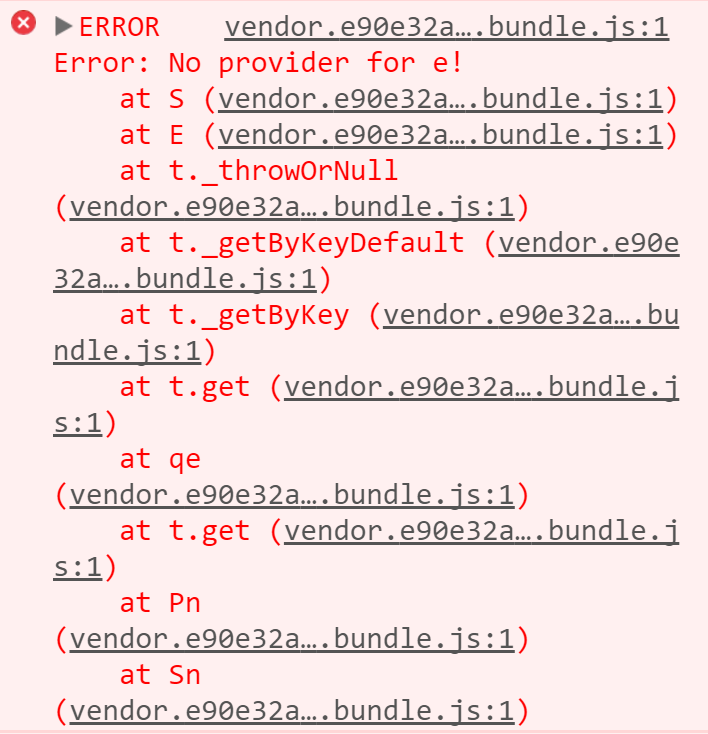
    While working on one of my Angular 4 apps, the transpiled output was displaying this on our production website that utilizes Docker NGINX:1.13

    Angular 4 Error

    I’ve been using Yarn as my default package manager for many of my Angular web applications.  I’ve experimented several techniques, and ultimately found that if I used “npm install” instead of “yarn install“, my web application worked under Docker nginx:1.13.

    Sources: GitHub

  • Lazy loaded components can’t use parent components.

    I’ve ran into an issue that I didn’t know about.  At first, I thought this particular issue is a bug.  It’s not but a feature of Angular 4.

    The Problem

    Lazy loaded components are unable to see parent-components that are already loaded.

    Solution

    We need to create a module that houses all the required components we need and import them in modules that require said components.

    Loader.module.ts

    Create a LoaderModule that has the components you need on lazy loaded components.

    import { NgModule } from '@angular/core';
    import { RouterModule } from "@angular/router";
    
    import { SidebarComponent } from "./sidebar.component";
    
    @NgModule({
        imports: [RouterModule],
        exports: [SidebarComponent],
        declarations: [SidebarComponent],
        providers: [],
    })
    
    export class LoaderModule { }

    Update lazy.module.ts

    Update your lazy loading module to add the following:

    import { NgModule } from '@angular/core';
    import { LoaderModule } from "./loader.module";
    
    @NgModule({
        declarations: [],
        imports: [LoaderModule]
    })
    export class LazyModule {}
    

    Whenever you need to use the shared components from LoaderModule, just import it into the module files that require the components.

    Sources: StackOverflow

  • Custom Deployment CLI for Angular Projects

    Hi everyone,

    I’ve created a mini-tutorial page on the process of creating an automatic deployment CLI for our Angular projects.

    This one line execution will run the following:

    • ng build –prod
      • Make a final build of your application.
    • aws s3 rm s3://your-website –recursive
      • Deletes all the stuff in your bucket.
    • aws s3 cp ./dist s3://your-website –recursive
      • Copies the final dist folder that was compiled on your computer and uploads it to your bucket.
    • aws configure set preview.cloudfront true
      • Enable experimental abilities (which is needed to utilize create-invalidation)
    • aws cloudfront create-invalidation –distribution-id XXXXXXXXXXXXXX –paths ‘/*’
      • This will create an invalidation on CloudFront.  Replace XXXXXXXXXXXXXX with your CloudFront ID specific to your CloudFront distribution.

    This is the deployment command:

    yarn deploy

    Please visit the Custom Deployment CLI for Angular Projects for the full details on creating this on the AWS platform.


  • Lag Using Dentrix G5 Chart

    Lag Using Dentrix G5 Chart

    Problem

    Users of Dentrix G5 complain that the chart module lags tremendously.

    Solution

    There are several possible solutions to remedying this.  Try the following:

    1. Edit Group Policy Editor to turn off Multicast:
      • Group Policy Editor (gpedit.msc) -> Admin Templates -> Network -> DNS Client -> Turn off Multicast -> Enabled
      • ipconfig /flushdns
    2. Delete Chart.Startup
      • Rename a file: C:\Program Files (x86)\Dentrix\Cust\Chart.Startup
        • Example: Chart.StartupOLD
      • Save the follow Windows batch file somewhere on your computer: dentrix-chart.bat
      • Run the batch file.
      • Restart computer.
    3. Call Dentrix Support

    Additional Sources

    Missing gpedit.msc Fix – If you can’t seem to find your gpedit.msc, this video explains how to get that back.

  • Update Ubuntu 14

    The CLI process on updating Ubuntu 14:

    # Fetches the list of available updates.
    sudo apt-get update
    
    # Strictly upgrades the current packages.
    sudo apt-get upgrade
    
    # Installs updates for current Ubuntu release.
    sudo apt-get dist-upgrade
    

    Note: This does not upgrade to a new version of Ubuntu (such as Ubuntu 16). This updates your current Ubuntu version.

  • Nginx 400 Bad Request The plain HTTP request was sent to HTTPS port

    Problem

    When viewing any of my sites using port 80, the following error appeared on non-SSL websites:

    Nginx 400 Bad Request The plain HTTP request was sent to HTTPS port

    Original server block:

    server {
        listen 80;
        listen 443;
    
        ssl on;
        ssl_certificate         /path/to/cert/example.pem;
        ssl_certificate_key     /path/to/cert/example.private.key;
    
        root /path/to/wordpress;
        index index.php;
    
        # Website URL
        server_name blog.duaneleem.com;
    
        # etc...
    }


    Solution

    After reading NGINX documentation, the solution to this was to place the SSL directive on “listen.” Here’s a sample server block that demonstrates this:

    server {
        listen 80;
        listen 443 ssl;
    
        ssl_certificate         /path/to/cert/example.pem;
        ssl_certificate_key     /path/to/cert/example.private.key;
    
        root /path/to/wordpress;
        index index.php;
    
        # Website URL
        server_name blog.duaneleem.com;
    
        # etc...
    }

    By adding “ssl” to the listen directive to all my server blocks, everything started working again.

    Source: nginx.org