Category: DevOps

  • NGINX Reverse Proxy Setup

    NGINX Reverse Proxy Setup

    This guide covers securing a WordPress (or any application) site with a reverse proxy, enabling custom filters and supporting multiple sites based on routes.

    The technical stack behind this:

    Prerequisites

    You already have the following:

    Install & Configure Docker

    Use the following guide to install Docker on Ubuntu (22 or 24 as of this writing).

    https://docs.docker.com/engine/install/ubuntu/

    Create CloudFlare Linux Location

    In your home directory, create a

    cloudflare
    folder that will contain all your certificates.

    Install CloudFlare Authenticated Origin Pull Certificate

    Download and add the certificate in your CloudFlare folder on the server:

    https://developers.cloudflare.com/ssl/origin-configuration/authenticated-origin-pull/set-up/zone-level/#1-upload-certificate-to-origin

    Deploy Docker NGINX

    We’ll be using Docker to manage our NGINX configurations.

    Clone GitHub Repo

    Clone the following GitHub repository:

    https://github.com/duaneleem/template.nginx-proxy

    Create Website Configuration

    Create a new website configuration under the following project folder:

    artifacts/configurations/website-url.route.conf

    There will be example configurations already in that folder as well that could be used as a model.

    Add Configuration to docker-compose.yaml

    See the

    docker-compose.yaml
    on line 20.

    When you create new

    .conf
    files, add another line that references that configuration

    Run Docker Deployment Command

    Run the following command to deploy the new server:


    docker compose up -d

    Contact Duane

    For expert help securing your web applications with advanced cybersecurity techniques, feel free to contact me below.

  • Change AWS RDS Instance Size

    Change AWS RDS Instance Size

    Vertical scaling in Amazon RDS involves changing the instance type to one with different computational, memory, and storage resources. Here’s a step-by-step guide for vertical scaling of an RDS instance running MySQL:

    Preparation Steps:

    1. Backup Data: Ensure you have a recent snapshot or backup of your database. Amazon RDS automated backups can be useful here.
    2. Maintenance Window: Identify a maintenance window where user impact will be minimal, as the scaling operation may result in downtime.
    3. Performance Metrics: Check your current resource utilization to select an appropriate instance type for scaling down.
    4. Test Environment: If possible, replicate the scaling process in a test environment to identify any potential issues.

    Scaling Operation:

    1. Login to AWS Console: Navigate to the RDS section.
    2. Select Database: Go to the “Databases” tab and click on the DB instance that you want to scale.
    3. Modify Instance: Click on the “Modify” button.
    4. Choose Instance Type: Scroll down to the “DB instance class” section and select the new instance type you want to switch to.
    5. Apply Changes: You have two options here:
    • Apply immediately: Your changes will be applied as soon as possible, resulting in immediate downtime.
    • Apply during the next maintenance window: Your changes will be applied automatically during your next scheduled maintenance window, minimizing unplanned downtime.
    1. Confirm and Modify: Review the changes and click on the “Modify DB Instance” button to initiate the scaling operation.

    Post-Scaling Steps:

    1. Monitor: Keep an eye on performance metrics to ensure that the new instance is operating as expected.
    2. Update DNS if Necessary: If the RDS endpoint has changed, update your application configurations to point to the new endpoint.
    3. Update Alarms and Monitoring: Adjust any CloudWatch Alarms or custom monitoring settings to suit the new instance type.
    4. Optimization: You might also need to optimize database queries or configurations to better suit the new hardware.
    5. Rollback Plan: Be prepared to rollback in case the new instance type does not meet your requirements.

    Resources

  • My DevOps Journey: 5 Years in Review

    My DevOps Journey: 5 Years in Review

    Introduction

    Greetings, tech enthusiasts and public speaking aficionados alike! I’m Duane, and today, I’m here to offer an intertwined narrative of my five-year odyssey in DevOps and Toastmasters. With 18 years of programming already under my belt, the last five years have been a transformative journey in both DevOps and public speaking. So without further ado, let’s explore this exciting saga.

    Table of Contents

    1. Setting the Stage: 18 Years in Programming and Toastmasters Beginnings
    2. Year One: Mastering DevOps and Public Speaking
    3. Year Two: Automation, Leadership, AWS, and Linux Foundation Training
    4. Year Three: Teamwork, Rhetoric, Kubernetes, and MIT’s Cloud & DevOps Course
    5. Year Four: Clouds, Oratory, AI Trading, and MLOps
    6. Year Five: Machine Learning, Mastery, and CISSP
    7. The Golden Nuggets: Lessons Learned
    8. The Horizon: What’s Next?

    Setting the Stage: 18 Years in Programming and Toastmasters Beginnings

    Before diving into DevOps, I was a seasoned programmer, eager for new challenges. Concurrently, I joined Toastmasters to polish my communication and leadership skills.


    Year One: Mastering DevOps and Public Speaking

    The first year was about laying strong foundations. In DevOps, I focused on marrying my programming knowledge with concepts like CI/CD and automation. Simultaneously, I completed my Ice Breaker speech in Toastmasters, setting the stage for more complex public speaking endeavors.


    Year Two: Automation, Leadership, AWS, and Linux Foundation Training

    In my second year, automation in DevOps and leadership roles in Toastmasters were my focus areas. This year marked a milestone as I attained my AWS Certified DevOps Professional certification and completed “The Linux Foundation’s Kubernetes Training Program,” significantly broadening my skillset.


    Year Three: Teamwork, Rhetoric, Kubernetes, and MIT’s Cloud & DevOps Course

    Year three was a harmonious blend of team collaboration in DevOps and rhetorical finesse in Toastmasters. This was the year I got my Certified Kubernetes Application Developer certification, and I also completed “Cloud & DevOps: Continuous Transformation” at MIT, adding a scholarly dimension to my practical experience.


    Year Four: Clouds, Oratory, AI Trading, and MLOps

    In this year, I deep-dived into cloud computing in DevOps, focusing on scalability and resource management. My Toastmasters journey took me to advanced oratory techniques. On the educational front, I completed Udacity’s Artificial Intelligence for Trading and wrapped up “Machine Learning Engineering for Production (MLOps)” by year-end.


    Year Five: Machine Learning, Mastery, and CISSP

    The fifth year is where my DevOps journey started to intersect intriguingly with machine learning. On the Toastmasters front, I reached a level of mastery, capable of delivering impromptu speeches effectively. Additionally, I am gearing up to sit for the CISSP test, a pivotal step in my career’s ongoing evolution.


    The Golden Nuggets: Lessons Learned

    1. Synergy Over Separation: The DevOps and Toastmasters journeys have taught me the value of combining varied skill sets—coding with operations, speaking with leadership.
    2. The Learning Never Stops: Both fields require continuous education, adaptation, and growth.
    3. Communication is Key: Effective communication is a cornerstone in both DevOps and public speaking, and mastering it has been one of my most valuable takeaways.

    The Horizon: What’s Next?

    The journeys are far from over. With emerging technologies and advanced public speaking platforms, I can only imagine how much more there is to explore and learn.


    I hope this dual narrative provides you some valuable insights. Your thoughts are always welcome, so please feel free to share your comments below!

    Until next time,

    Duane
  • Install & Uninstall Minikube (Ubuntu 22.04.2 LTS)

    Install & Uninstall Minikube (Ubuntu 22.04.2 LTS)

    In this guide, we will explore the process of installing and uninstalling Minikube on Ubuntu 22.04.2 LTS.

    Install Minikube

    Minikube Installation

    I’ve used the official Minikube start documentation. This was the output:


    # Installation for Ubuntu 22.04.2 LTS, x86-64
    curl -LO https://storage.googleapis.com/minikube/releases/latest/minikube_latest_amd64.deb
    sudo dpkg -i minikube_latest_amd64.deb

    # Start your cluster
    minikube start

    You’ll receive an error because you’ll need to specify a driver. The recommended driver is Docker. The next section will go over installing Docker.

    Install Docker

    Let’s use Docker as our driver for Minikube. I used the official Docker documentation to get Docker installed.

    After installing Docker, do these post-setup configuration.

    Deploy Kubernetes

    Finally, run the following based on the Minikube documentation:


    # Set Docker as default.
    minikube config set driver docker

    # Start Minikube with Docker as the driver.
    minikube start

    # Alias kubectl
    alias kubectl="minikube kubectl --"
    alias k="minikube kubectl --"

    Uninstall Minikube

    Use the following documentation to delete Minikube.


    minikube delete --all --purge

    Resources

    The following resources were used to develop this guide.

  • Install & Uninstall Microk8s (Ubuntu 22.04.2 LTS)

    Install & Uninstall Microk8s (Ubuntu 22.04.2 LTS)

    The instructions to remove Microk8s are for Ubuntu 22.04.2 LTS but may work with other Ubuntu versions. See Microk8s documentation for more info.

    If you find any errors in this post, please contact me.

    Remove Microk8s

    I’ve ran into several errors removing Microk8s. I found that you have to reset Microk8s first and then remove. The official documentation for resetting Microk8s can be found here.

    The cleanest way to remove Microk8s:


    # Reset Microk8s
    ## https://microk8s.io/docs/command-reference#heading--microk8s-reset
    sudo microk8s reset

    # Remove Microk8s
    sudo snap remove microk8s

    Install Microk8s

    Reinstall Microk8s with the following:


    # Install Microk8s
    ## https://microk8s.io/docs/getting-started
    sudo snap install microk8s --classic --channel=1.27

    # Join your user to microk8s Linux group
    sudo usermod -a -G microk8s $USER
    sudo chown -f -R $USER ~/.kube

    # The rest of the commands are optional but good to run for verification:
    ## https://microk8s.io/docs/getting-started

  • Machine Learning Engineering for Production (MLOps) Specialization

    Machine Learning Engineering for Production (MLOps) Specialization

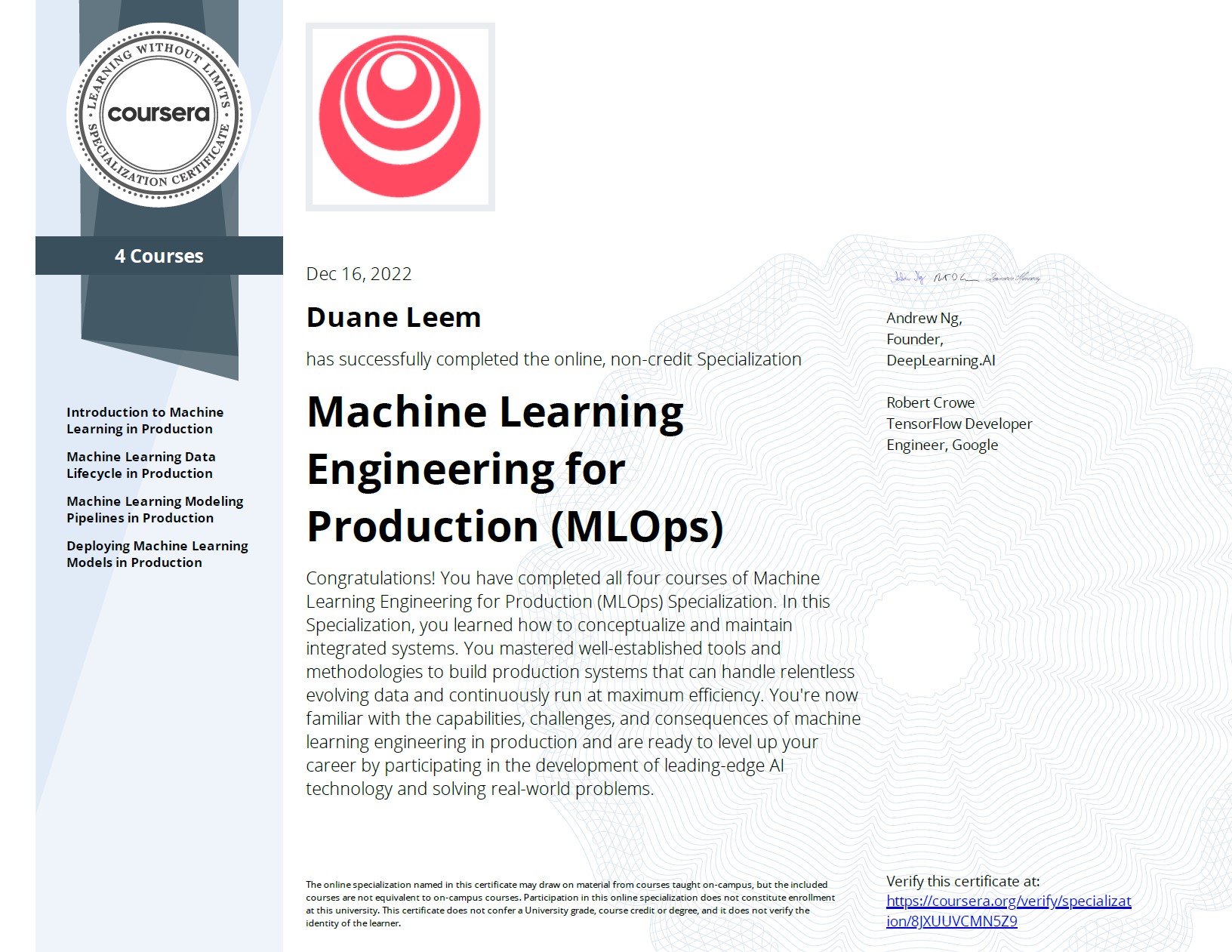
    I’m excited to share that I have successfully completed DeepLearning.ai program in MLOps Specialization!

    This will help me deploy ML models proficiently and understanding the processes required to support the Models in production.

    Machine Learning DevOps Engineering
    Machine Learning Engineering for Production (MLOps)
  • Installing Ruby on Amazon Linux 2

    Installing Ruby on Amazon Linux 2

    Running into a problem installing Ruby on your Amazon Linux 2 machine?

    I was able to successfully install Ruby and also rvm by doing the following:


    sudo yum install gcc

    gpg2 --keyserver hkp://pgp.mit.edu --recv-keys 409B6B1796C275462A1703113804BB82D39DC0E3 7D2BAF1CF37B13E2069D6956105BD0E739499BDB

    source ~/.rvm/scripts/rvm

    rvm get head

    rvm list known

    # Install from one of the Ruby versions from the list.
    rvm install 3.0.2

    ruby --version

    Sources

  • Upgrade Amazon Lightsail Bitnami WordPress using All-in-One WP Migration Plugin

    Upgrade Amazon Lightsail Bitnami WordPress using All-in-One WP Migration Plugin

    One of the hardest problems with upgrading the Amazon Lightsail Bitnami WordPress is upgrading PHP.

    In this walkthrough, I’ve detailed the steps that I’ve taken to upgrade from an older Bitnami WP Lightsail to their latest image 🙂

    Note the following:
    – This post is a work in progress and I will provide additional details continuously.
    – Also, you will need a “Unlimited Extension” purchased from the plugin vendor.

    What We Need to Do

    The steps we’ll be doing at a high level:

    • Download the WP Plugin: All-in-One WP Migration plugin
    • Install the new plugin.
    • Create a backup with the new plugin.
    • Export and download your new backup file.
    • Deploy the latest AWS Lightsail for Bitnami WordPress
    • Download the PEM file associated to the new server.
    • Detach static IP from old server to new Bitnami WP server.
    • Change All-in-One backup folder ownership temporarily to allow SFTP via SSH
    • Use FTP software to SFTP to new server and upload the backup file to AIO backup folder.
    • Change AIO backup folder ownership back to original folder ownership.
    • In /wp-admin AIO backup, restore from backup file.

    Download the WP Plugin

    Install the AIO plugin from /wp-admin -> Plugins -> Add New

    Search for “all in one WP migration” as shown below and click “Install Now” from ServMask:

    Create a Backup with the New Plugin

    From All-in-One WP Migration (/wp-admin menu), click Backups

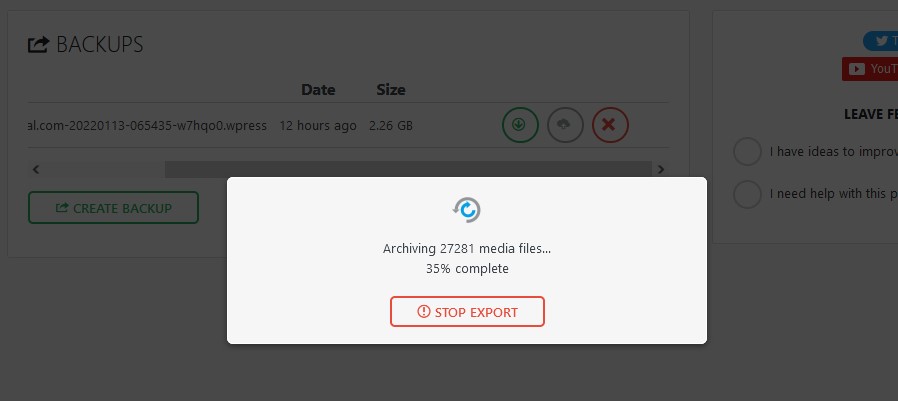
    Click “Create Backup” and you should see the progress:

    When that is completed, click the green arrow on the right of the new backup to download it.

    Deploy the latest Amazon Lightsail for Bitnami WordPress

    The following steps will help us deploy the latest Bitnami WordPress in Amazon Lightsail:

    • Log on to AWS and open up Amazon Lightsail.
    • Under Instances, click “Create Instance”.

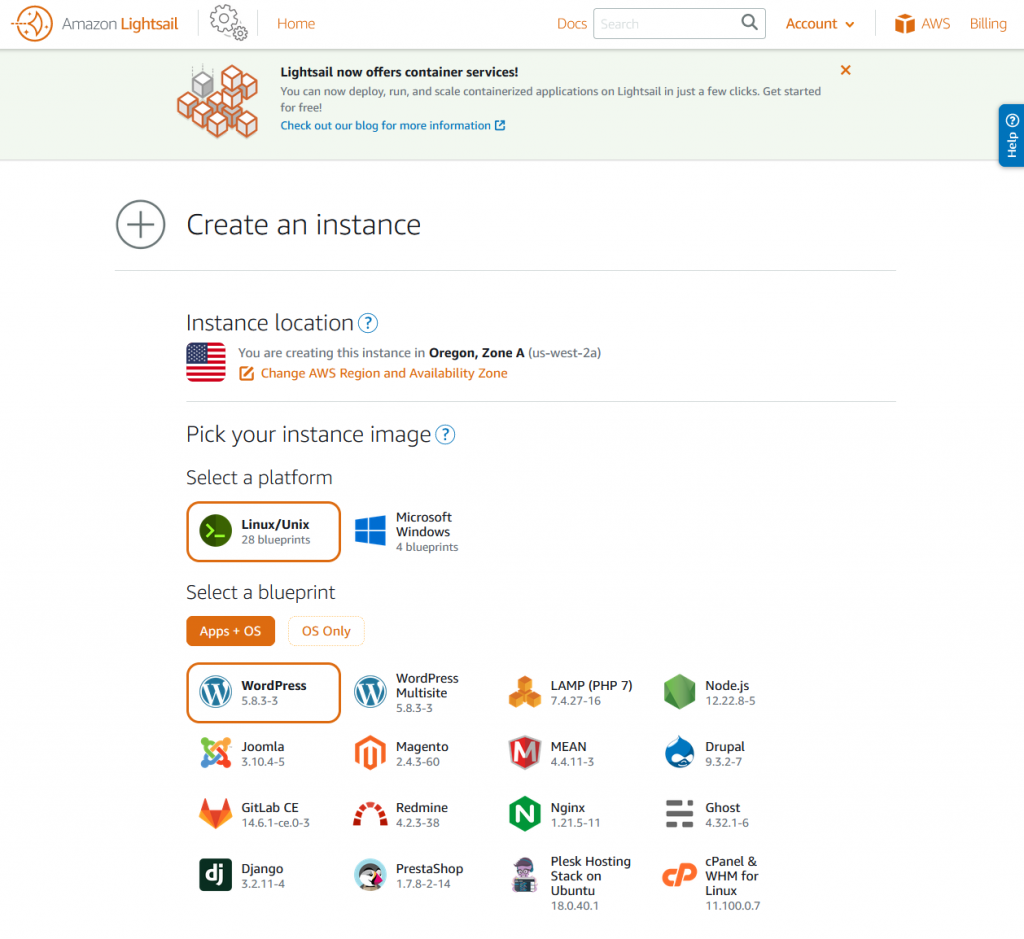
    You’ll be presented with a selection of instances you can launch. You’ll see the latest supported WordPress version. As of this writing, it is version 5.8.3.

    Amazon Lightsail - Select Instance

    Scrolling down you’ll find more options. The most notable options you’ll want to pay attention to:

    • Change SSH key pair
    • Choosing an instance plan
    • Identify your instance

    Change SSH key pair

    I left it at default but this will be used to SSH/SFTP into your machine. You’ll be able to download the default key later if you haven’t done so already. I’ll cover that more later.

    Choosing an instance plan

    Up to you, but if it’s for testing do the $3.5 🙂 I recommend the $5 if this is your main instance. You could scale up later on.

    Identify your instance

    Any name will work here.

    Download the PEM file associated to the new server

    In order to connect to your server through your SFTP application, you ‘ll need the username and the private key associated to your Lightsail server.

    Get Username

    Do the following to attain the username:

    1. Ensure you’re in the Amazon Lightsail section of AWS 😉
    2. Under instances, click on the title of the instance you want to manage.
    3. Under connect, you’ll find your username. Most likely “bitnami” since you’re using a Bitnami image.

    Get Private Key

    From the Amazon Lightsail administrative screen:

    1. Under instances, view which region your server is located. It’s located as the last line in the gray card. If you’re from the USA, it could be either Oregon, Ohio, Virginia.
    2. From the top-right, click: Account
    3. From the drop down, click: Account
    4. Click “SSH Keys”
    5. Download the associated SSH key that works with your server. It’ll usually list out which key is associated to which region.

    Detach static IP from old server to new Bitnami WP server

    In Progress 😊

  • Certified Kubernetes Application Developer (I PASSED!)

    Certified Kubernetes Application Developer (I PASSED!)

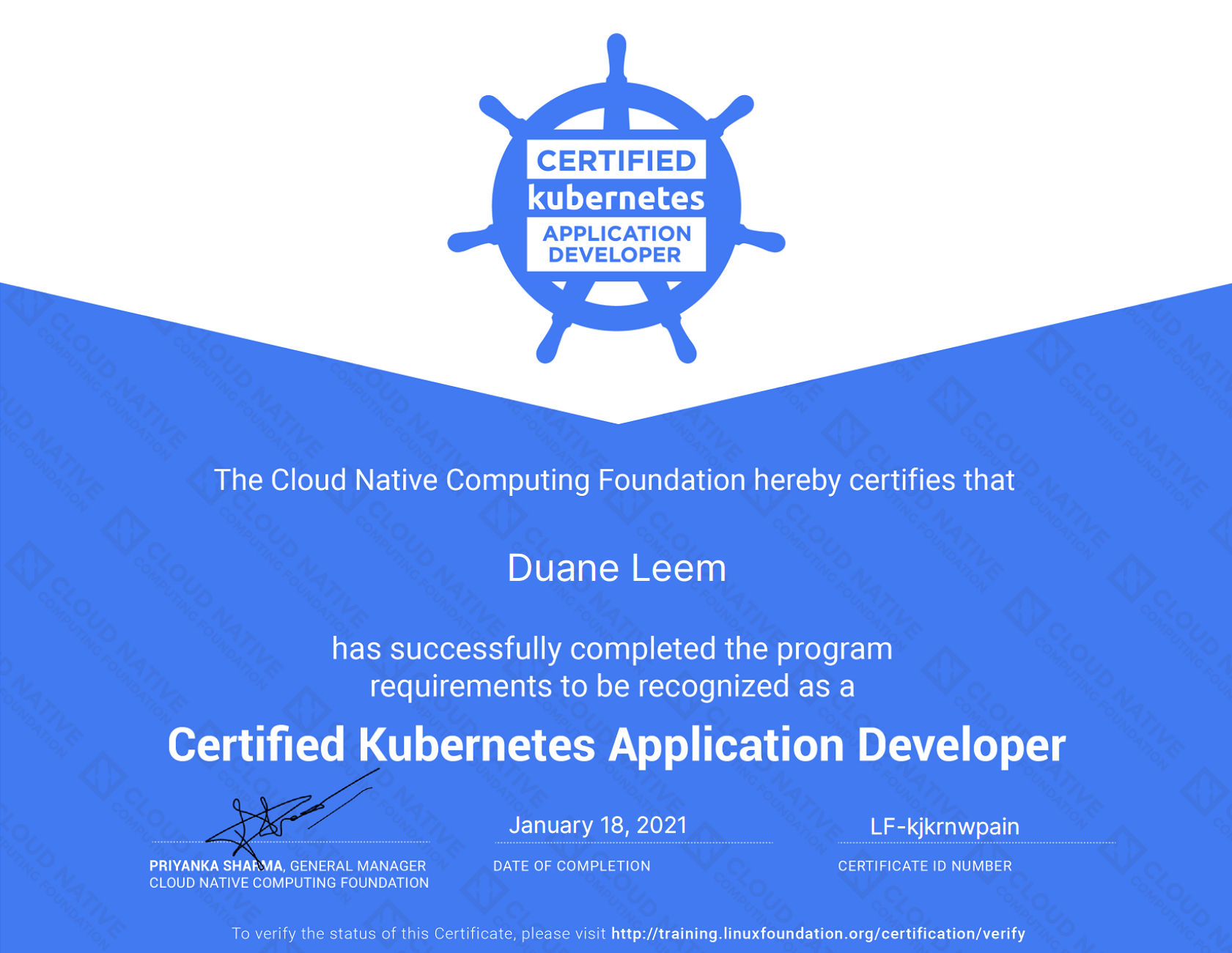
    As of January 18, 2021 I am a Certified Kubernetes Application Developer!

    I scored much higher on my 2nd attempt. I attribute that to the following:

    • My test environment is MUCH better. I moved to a new home and I had a guest room that I prepared a day before the test. Had a comfy chair and all 🙂
    • I took the test at 9am in the morning. I did not have any interruptions at home compared to last time.
    • For a few months, I spent about 30 minutes to 1 hour each day on kubectl commands and documentation. 1 week before the test, I did an hour a day with imperative commands.
    • I made bookmarks to knowledge gaps I had with Kubernetes to the Kubernetes official documentation.
    • I have Kubernetes applications in production.

    Resources I Used

    I used the following materials that helped me with CKAD:

    • CKAD Exercises by dgkanatsios/CKAD-exercises
      • I did this, at minimum, 30 minutes a day for a couple of months.
      • You need a complete mastery of the kubectl without needing to look up commands often during the test.
    • Udemy CKAD with Tests by Mumshad Mannambeth
      • 3 months before my 2nd test attempt, I went back and watched several videos to revamp some of the knowledge gaps I still had with CKAD.
    • CKAD Labs by Mumshad Mannambeth
      • The Udemy course provided by Mumshad, he created labs to help aspiring CKAD professionals 🙂
      • I went through many of the labs and even revisited some of the labs to fill in my knowledge gaps.
      • There are some practice tests in here that can help you master the kubectl much more efficiently.
    • kubectl Cheat Sheet from Kubernetes Documentation
    • Kubectl Reference Docs from Kubernetes Documentation

    1st Test Attempt

    I’ve noted my previous attempt I did back in March 2021. Click Here to view the post.

  • CKAD First Attempt

    CKAD First Attempt

    First Attempt

    I failed the first CKAD attempt. I’ve noted here on some of the reasons why I failed and also what I can do on the 2nd round.

    Contributing Reasons

    I’m noting a few factors I felt contributed to this:

    • I usually code on my desk. However, for this exam, it didn’t meet the requirements. The table had to be clear of everything (an empty table).
      • I was asked to move to an area with an empty table.
      • The new location I had to move to was a coffee table and I had to kneel or cross my legs.
      • Throughout the entire certification I had 50%+ of my concentration eliminated due to discomfort.
    • The following topics I will need to reinforce. I’ve done them all the time in production, but given I only had 2 hours, I will need to think faster:
      • Network Policies
      • Using kubectl and exposing ports.
      • Less time looking at K8s documentation and more using kubectl -h or kubectl describe
    • Not enough practice. At minimum, I should be spending 1 hour a day purely on K8s practice questions that uses kubectl.

    Next Attempt

    On the next attempt, I plan to do the following before:

    • Find a location that won’t hinder my concentration. I felt this was the greatest issue I had.
    • Emphasize on the following as stated previously:
      • Network Policies
      • Using kubectl and exposing ports. Read documentation and videos hardening my understanding on:
        • kubectl run nginx –image=nginx –dry-run –restart=Never –port=80 -o yaml > nginx.po.yaml
        • kubectl expose deployment nginx –port=80
      • Less time looking at K8s documentation and more using kubectl -h or kubectl describe
    • Use kubectl api-resources
    • Get used to:
      • kubectl config set-context –current –namespace=foo
      • alias ll=’ls -alF’
    • Each day until the next attempt:

    Conclusion

    There were some knowledge gaps that I will need to work on. I felt my biggest issue was doing this in my living room. I had a sub-optimal experience having to move my setup to a coffee table.

    My concentration was impacted and there was people on the phone in the background. On the next attempt, I will be doing some more practice on several areas and possibly go to a Hotel nearby to take the test.

    Update: Passed CKAD

    I past the CKAD on January 18, 2021. Click Here to see my latest post on some of my thoughts and lessons learned of the CKAD 2nd test.