Category: Web Development

  • PHP Errors to Console with ob_start()

    PHP Errors to Console with ob_start()

    Using PHP echo will typically send output directly to the browser, displaying text, HTML, or other content that a user can see. This behavior forms the basis of how PHP scripts generate dynamic web pages. It’s the fundamental way PHP helps in building responsive and user-friendly websites.

    But what if you wanted to output that information on the server instead? This is a question that many developers may ponder, especially when working on complex applications where server-side processing is essential. There might be scenarios where you need to process or store data server-side without sending it to the client’s browser.

    This could include logging information for monitoring and debugging, generating files that need further manipulation, handling data securely before it’s ready to be sent to the end-user, or even queuing data for batch processing. The ability to control where your output is directed can significantly enhance the flexibility and robustness of your code.

    By leveraging PHP’s powerful server-side capabilities, you can create more efficient workflows, improve the performance of your applications, and add layers of security and control that aren’t possible with client-side processing alone.

    Understanding and utilizing these PHP functionalities not only extend the possibilities of what you can achieve but also pave the way for innovative solutions to unique programming challenges.

    Example Code

    You can create a buffer and log it out to the backend console doing the following:


    // Create an output buffer.
    ob_start();

    // Dump the array contents and save it to a variable.
    var_dump($array);
    $resultVarDump = ob_get_clean();

    // Displays the array dump on the console.
    error_log($resultVarDump);

    With this method, you can capture the echo statements in the buffer, manipulate them as needed, and even store them in server files or databases. It’s a powerful way to gain more control over how and where your PHP outputs are used.

    Use Cases

    Display Variables

    You could output variables you don’t want displayed on the browser.

    Using a SIEM or Logging System

    You’re using systems such as AWS CloudWatch, OSSEC, or Wazuh. You’re creating alerting or just being proactive with system events.

    You can log specific information out in the backend for your system to capture.

    Troubleshooting

    You want information only displayed for you or your logging system.

    Resources

  • Upgrade Amazon Lightsail Bitnami WordPress using All-in-One WP Migration Plugin

    Upgrade Amazon Lightsail Bitnami WordPress using All-in-One WP Migration Plugin

    One of the hardest problems with upgrading the Amazon Lightsail Bitnami WordPress is upgrading PHP.

    In this walkthrough, I’ve detailed the steps that I’ve taken to upgrade from an older Bitnami WP Lightsail to their latest image 🙂

    Note the following:
    – This post is a work in progress and I will provide additional details continuously.
    – Also, you will need a “Unlimited Extension” purchased from the plugin vendor.

    What We Need to Do

    The steps we’ll be doing at a high level:

    • Download the WP Plugin: All-in-One WP Migration plugin
    • Install the new plugin.
    • Create a backup with the new plugin.
    • Export and download your new backup file.
    • Deploy the latest AWS Lightsail for Bitnami WordPress
    • Download the PEM file associated to the new server.
    • Detach static IP from old server to new Bitnami WP server.
    • Change All-in-One backup folder ownership temporarily to allow SFTP via SSH
    • Use FTP software to SFTP to new server and upload the backup file to AIO backup folder.
    • Change AIO backup folder ownership back to original folder ownership.
    • In /wp-admin AIO backup, restore from backup file.

    Download the WP Plugin

    Install the AIO plugin from /wp-admin -> Plugins -> Add New

    Search for “all in one WP migration” as shown below and click “Install Now” from ServMask:

    Create a Backup with the New Plugin

    From All-in-One WP Migration (/wp-admin menu), click Backups

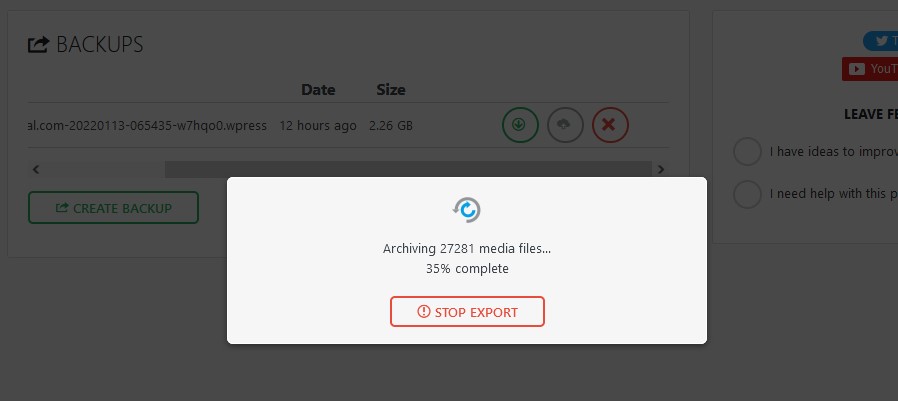
    Click “Create Backup” and you should see the progress:

    When that is completed, click the green arrow on the right of the new backup to download it.

    Deploy the latest Amazon Lightsail for Bitnami WordPress

    The following steps will help us deploy the latest Bitnami WordPress in Amazon Lightsail:

    • Log on to AWS and open up Amazon Lightsail.
    • Under Instances, click “Create Instance”.

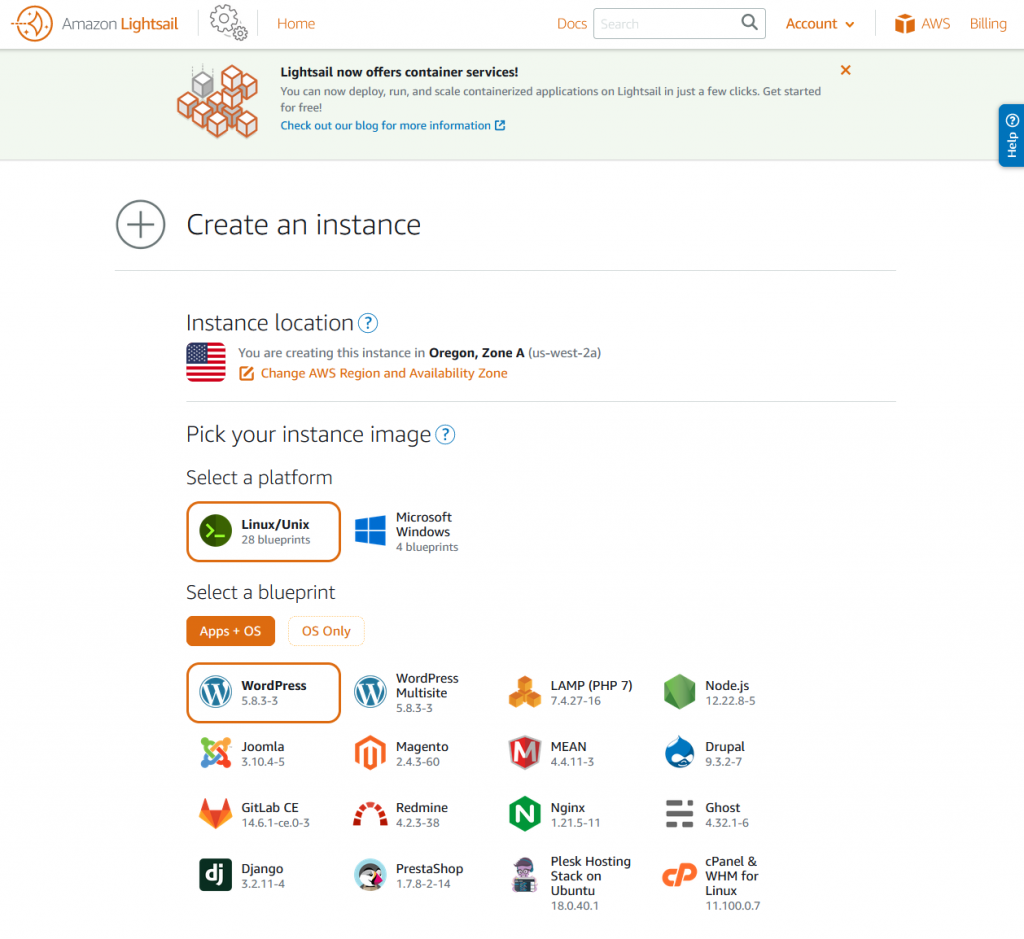
    You’ll be presented with a selection of instances you can launch. You’ll see the latest supported WordPress version. As of this writing, it is version 5.8.3.

    Amazon Lightsail - Select Instance

    Scrolling down you’ll find more options. The most notable options you’ll want to pay attention to:

    • Change SSH key pair
    • Choosing an instance plan
    • Identify your instance

    Change SSH key pair

    I left it at default but this will be used to SSH/SFTP into your machine. You’ll be able to download the default key later if you haven’t done so already. I’ll cover that more later.

    Choosing an instance plan

    Up to you, but if it’s for testing do the $3.5 🙂 I recommend the $5 if this is your main instance. You could scale up later on.

    Identify your instance

    Any name will work here.

    Download the PEM file associated to the new server

    In order to connect to your server through your SFTP application, you ‘ll need the username and the private key associated to your Lightsail server.

    Get Username

    Do the following to attain the username:

    1. Ensure you’re in the Amazon Lightsail section of AWS 😉
    2. Under instances, click on the title of the instance you want to manage.
    3. Under connect, you’ll find your username. Most likely “bitnami” since you’re using a Bitnami image.

    Get Private Key

    From the Amazon Lightsail administrative screen:

    1. Under instances, view which region your server is located. It’s located as the last line in the gray card. If you’re from the USA, it could be either Oregon, Ohio, Virginia.
    2. From the top-right, click: Account
    3. From the drop down, click: Account
    4. Click “SSH Keys”
    5. Download the associated SSH key that works with your server. It’ll usually list out which key is associated to which region.

    Detach static IP from old server to new Bitnami WP server

    In Progress 😊

  • Converting Time to Seconds or Minutes for an Entire Python Dataframe / CSV Column

    Converting Time to Seconds or Minutes for an Entire Python Dataframe / CSV Column

    Quick example taking a string such as ’00:25:00′ (which is 25 minutes) and converting it to 1500 seconds (for example) for an entire Python Pandas dataframe column.

    First: Install required Python Packages


    import pandas as pd
    from csv import writer
    from csv import reader

    Second: Read a CSV into a Python Dataframe


    df = pd.read_csv(path_to_download_default_directory + '/test.csv')

    Third: Convert Time to Minutes

    On line 4, I converted the seconds into minutes by diving by 60.


    ### Convert entire 'timeColumn' to timedelta type..
    df['timeColumn'] = pd.to_timedelta(df['timeColumn'])
    ### Convert 'timeColumn' to minutes only.
    df['columnAsMinutes'] = df['timeColumn'].dt.total_seconds() / 60
    ### Drop the old table.
    df.drop('timeColumn', axis = 1, inplace = True)

    Finally: Save Output

    Let’s save our work.


    df.to_csv('newData.csv', index = False)

    Full Script

    The full script is as follows:

    Resources

  • Local WordPress Development

    Local WordPress Development

    About

    The purpose of this guide is to help you create a local WordPress development server on your laptop using Docker.

    Requirements

    • You have Docker installed.
    • You already know how to use Docker.
    • Create a project folder that will contain all these files. This can be anywhere on your computer. Example: ~/Code/WordPress-Test

    Create MySQL Docker Container

    Create a new MySQL instance (if you don’t already have one) so your WordPress can use it as its database. Save the following to the root of your project folder.

    Run the following:


    docker-compose up -d

    Before running a WordPress container, create a schema. For this example, I’ll use the schema name “wordpress-dev”.

    Create WordPress Docker Container

    Use the following Gist to create your Docker container.

  • Innovative Planning 4: Manage Projects Successfully

    Innovative Planning 4: Manage Projects Successfully

    I’ve just completed a Toastmasters speech on my level 4 project in the Pathway project: Manage Projects Successfully

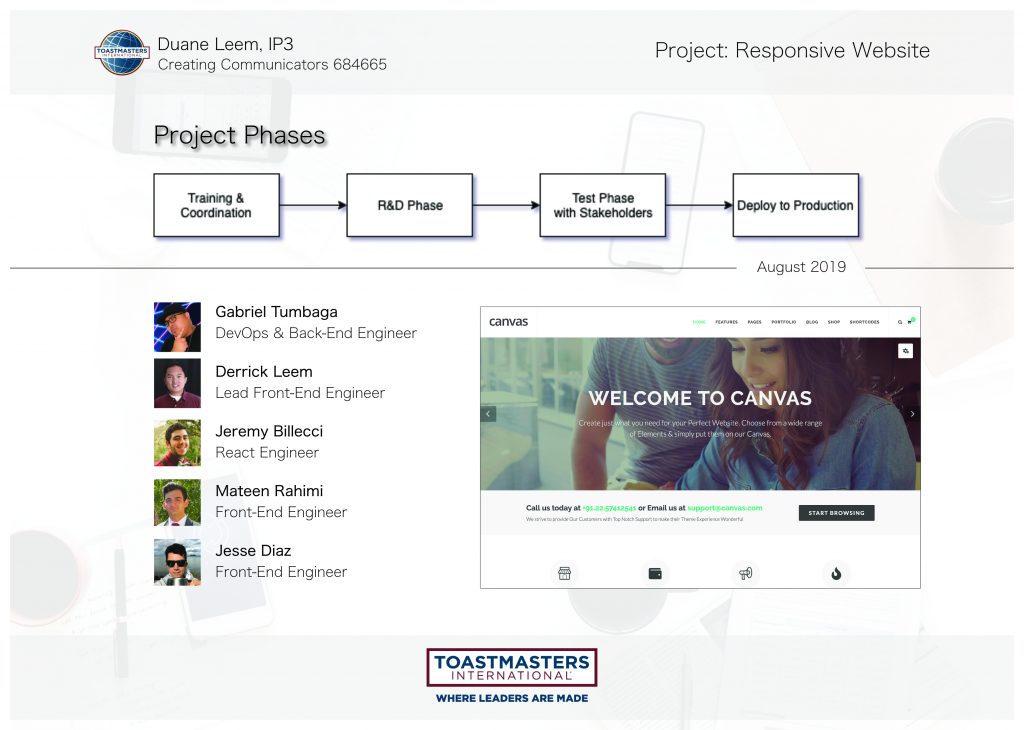
    I’ve reported to my club on the current project status. I have that currently conveyed from the following handout:

    Speech Handout on 20190702
    Project: Responsive Website

    During my speech, I’ve covered the following:

    • Project Phases
    • Software Engineers involved.
    • Theme template that will be used with the project.

    I received positive feedback. There are some additional items I need to work on (such as ensuring that everyone understands the technical aspects of the project). I will be incorporating this in future speeches.

    For full information about this project, please visit the project status page.

  • Developing Creating Communicators Gatsby Website

    Developing Creating Communicators Gatsby Website

    About the Project

    We’ve kick-started our programming for Toastmasters Creating Communicator’s new website! We’re developing the new website using GatsbyJS, a static site generator using React.

    Duane, Gabe, Derrick at Veranda on 20190630
    Meetup at Veranda, Concord on 2019-06-30

    Thank you to the following Software Engineers for helping our Toastmasters club enhance our current website.

    Toastmasters Presentation of the Project

    When: Tuesday, July 2
    Location: 4501 Deer Valley Rd. Antioch, CA 94531
    Room: Kaiser Permanente, Conference Room 1B or 1C

    I will be doing a Toastmaster’s presentation on the project timeline and information on all who are involved in this project. Please visit Toastmasters Creating Communicator’s current homepage for details on location.

    Project Timeline

    The phases are divided by 4 project phases:

    20190702 Project Timeframe

    I’ll describe what each phases entail:

    1. Training & Coordination: Our software engineers will be getting up to speed with GatsbyJS.
    2. R&D Phase: We’ll be doing the actual programming in this phase and integrating all components together.
    3. Test Phase: Club members will be testing the newly developed application.
    4. Deployment: Once club members have submitted their feedback and all software bugs have been fixed, our DevOps Engineer will deploy the website and make it live.

    Project Updates

    As part of this project on my Toastmasters project, I need to also create project status reports in the form of blogs. Listed on the following are status updates pertaining to this project:

    Project Links

  • Codeanywhere Angular CLI

    Codeanywhere Angular CLI

    Using Codeanywhere and you’re developing in a container provided by them? If you’re developing an Angular application, use the following command to expose your app so you can view the development build:


    ng serve --host 0.0.0.0 --port 3000 --disable-host-check

    Note the following about CA:

    • CA wants you to publish on port 3000.
    • Angular CLI will require you to disable host check using –disable-host-check
  • WooCommerce Roles & Capabilities for Custom Shop Manager Role

    WooCommerce Roles & Capabilities for Custom Shop Manager Role

    One of my projects required me to create a new role based on the Shop Manager role provided by WooCommerce.  Essentially, I need to develop a custom plugin to disable many of the administrative functions provided by WordPress and use a Roles & Capabilities plugin to lock the Shop Manager to only WooCommerce.

    Roles & Capabilities Plugin

    I used the following plugin to help me manage the roles & capabilities of my WordPress permissions: Advanced Access Manager

    Adding New Orders

    Location: WooCommerce -> Orders -> Add Order

    The following capability is required in order to manage shop orders

    • manage_woocommerce
      • This may give too much “admin” access so make sure to use Advanced Access Manager to further eliminate access you need.
    • edit_shop_orders
    • view_woocommerce_reports
    • edit_posts
      • This will give the user the ability to edit posts too (make sure to remove this from side & admin bar menu.
  • New Angular Project in Current Directory

    New Angular Project in Current Directory

    One of my projects required a new Angular 6 project folder.  I needed to scaffold the Angular 6 contents in an existing directory.

    The following command will generate a new Angular 2+ project in your current directory:


    ng new appName --directory ./

    Credits

  • Importing WordPress Media from Another WordPress Instance

    Importing WordPress Media from Another WordPress Instance

    I have two similar WordPress instances.  One of the WordPress instances had a lot of work done to a single page that needed to be replicated to the other WordPress instance.

    Export Media from WordPress Instance

    The following are the steps in order to migrate the contents of that page to the other WordPress instance you have.  From the site you did heavy work from:

    • Copy the recent folder with the files you uploaded: /wp-content/2018/05
    • Go to: /wp-admin
    • Navigate to: Tools -> Export
    • Click: Media
    • Click: Download Export File

    Import to Other WordPress Instance

    On the WordPress instance you want to copy the contents to:

    • Upload this folder (/wp-content/2018/05) to the other WordPress instance at the same location.
      • Ensure you have the appropriate permissions to upload to the /wp-content folder. You can give SSH access by doing the following: chown -R ubuntu:www-data /wp-content
    • Navigate to: /wp-admin
    • Navigate to: Tools -> Import
    • Click: Run Importer
    • Click “Choose File” and select the XML that was exported earlier.